
POWR code is not working in Lightspeed.
If you’ve tried embedding a POWR app on your Lightspeed store and the code doesn’t seem to be working as expected — whether the app isn’t displaying at all, showing a blank space or throwing an error — there’s a straightforward explanation. When using POWR apps on Lightspeed for the first time, the app’s shortcode may not render correctly because the necessary POWR JavaScript script hasn’t been installed on your site yet. Without this script in place the shortcode has nothing to run on and simply won’t display. The good news is that fixing this is quick and easy — you’ll just need to install a POWR app from the Lightspeed App Market first, which will automatically add the required POWR JS script to your site. In this article we’ll walk you through exactly how to do that and get your POWR app displaying correctly on your Lightspeed store.
Visit the Lightspeed App Market and search for any POWR app
Click on the POWR app you’d like to install
Click “Grant Access” to begin the installation
You will be redirected to your POWR account dashboard where you can create new apps or view your existing ones
Once redirected the required POWR JavaScript script will have been automatically installed on your Lightspeed site
You can now use POWR embed codes and shortcodes on your Lightspeed store and they will render correctly

Once you've been redirected to your POWR dashboard, select the app you'd like to use and click Publish. Your POWR shortcode will now be fully functional — simply copy it and paste it into the desired location on your Lightspeed site.
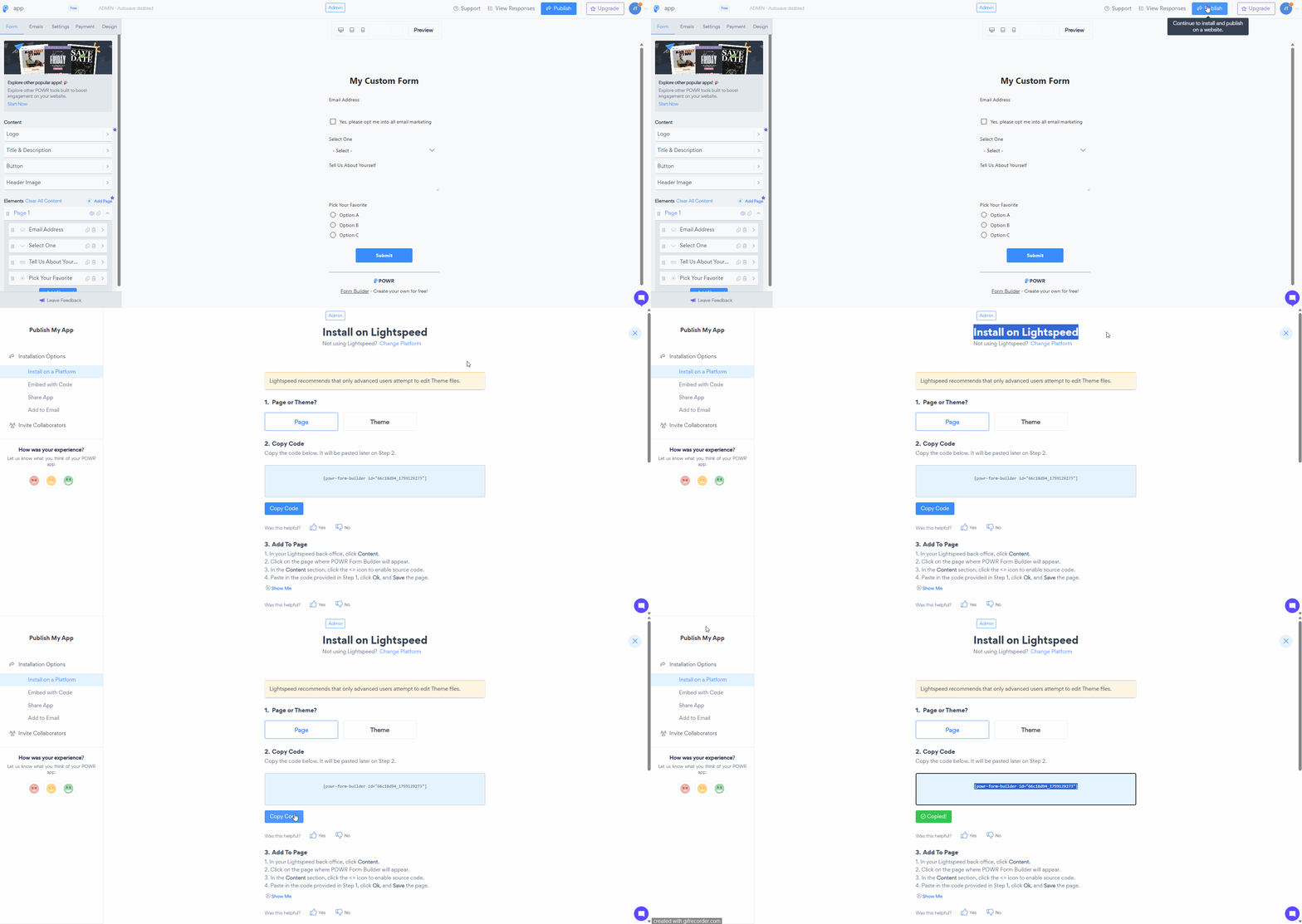
Getting your POWR apps working on Lightspeed is a simple two-step process — install a POWR app from the Lightspeed App Market to activate the required JavaScript script, then paste your shortcode wherever you need it on your site. Once that initial setup is complete all of your POWR apps will work seamlessly on your Lightspeed store going forward. If you run into any trouble during the installation or your shortcode still isn't rendering correctly after following the steps above, don't hesitate to reach out to our support team with a screenshot and a link to your live site — we'll be happy to help get it sorted for you as quickly as possible!
Need Help?
If you need help or have questions about our apps, our support team is happy to assist.
👉 Contact our support team
When you contact us, you'll be prompted to authenticate your email by signing in, and we'll email you a confirmation code. This helps ensure our support team's reply reaches you without issues.
For more information about available features, visit our Pricing Page:
https://www.powr.io/pricing