How to install POWR app on Squarespace product page
→ Follow these instructions to install the app easily
Get the code from POWR editor
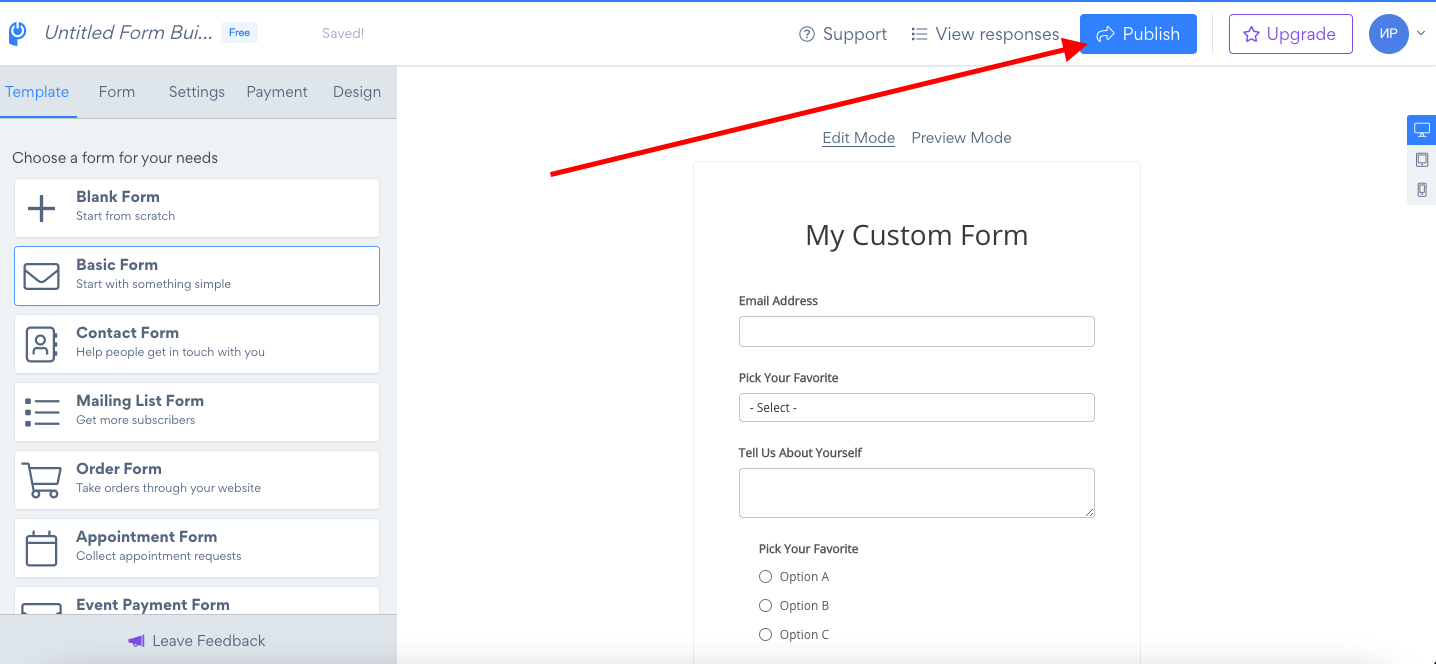
- Go to your POWR app editor
- Click on Publish
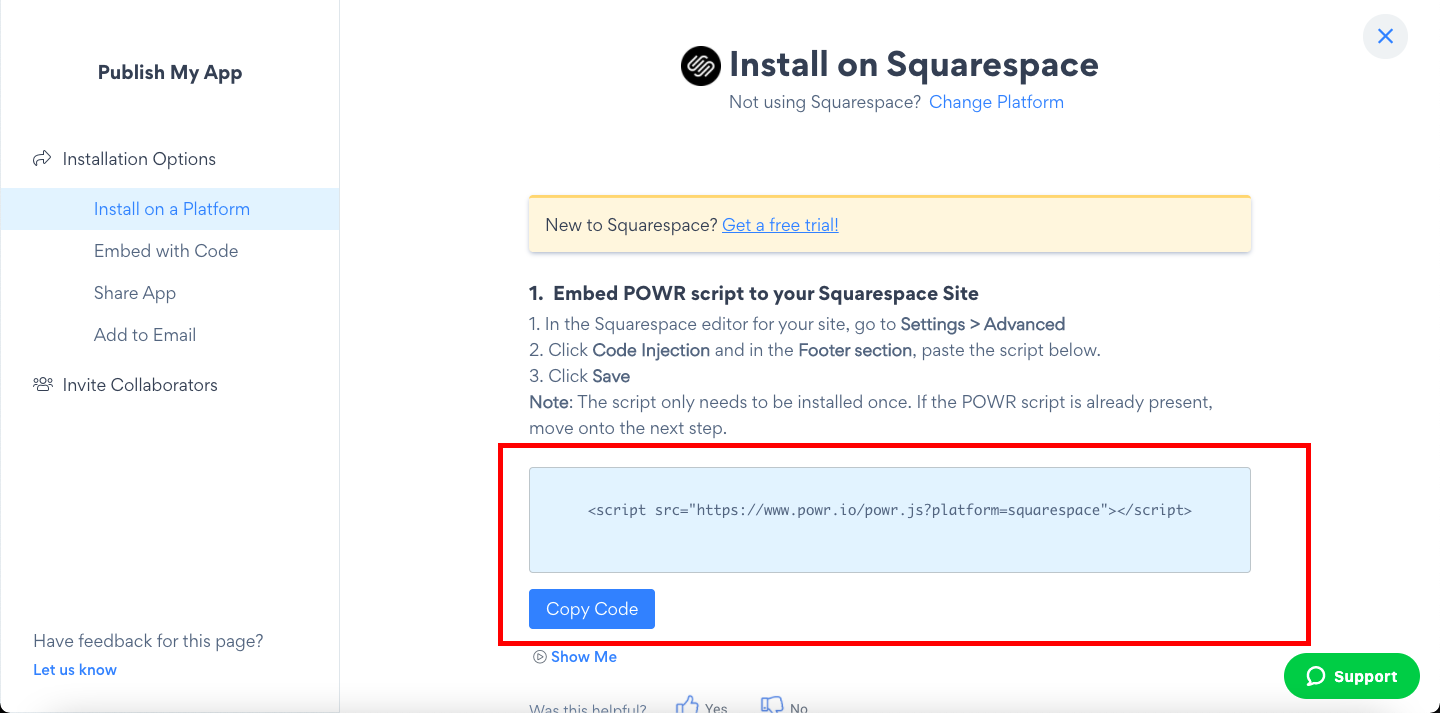
3. Choose the Squarespace from the list

Embed POWR script to your Squarespace Site
Note: The script only needs to be installed once. If the POWR script is already present, move onto the next step.
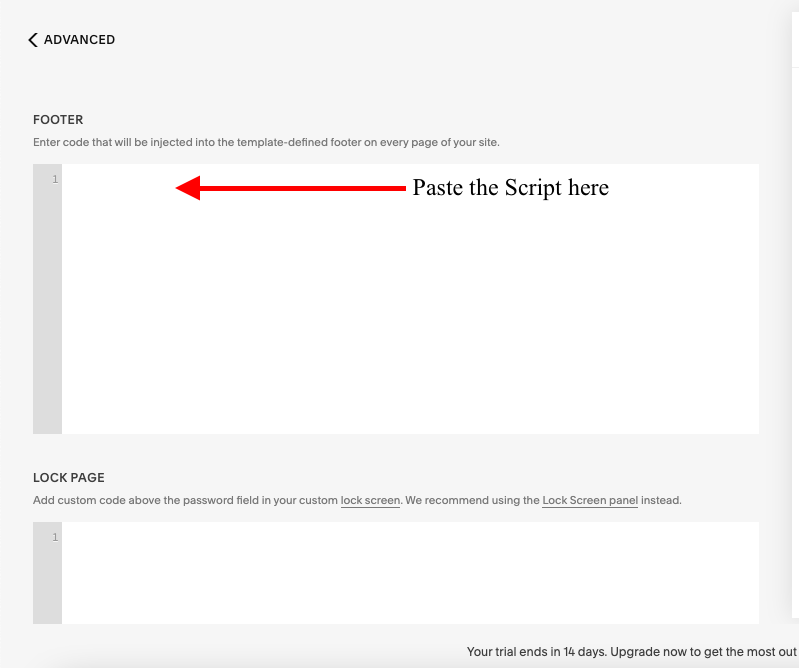
- Copy the Script provided in POWR editor
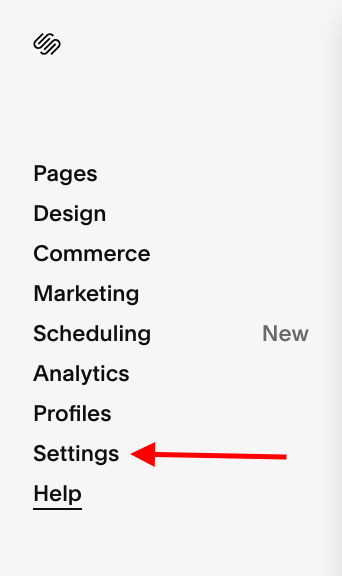
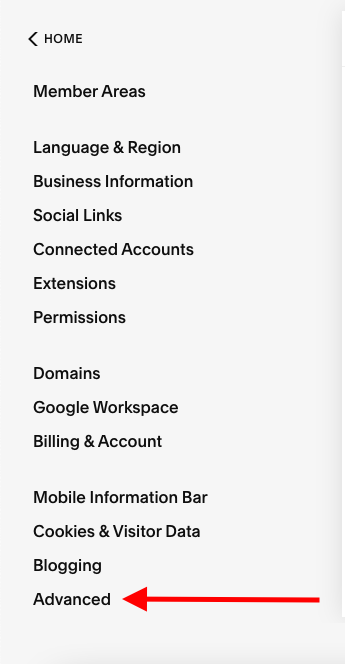
- Go to the Squarespace editor, go to Settings > Advanced
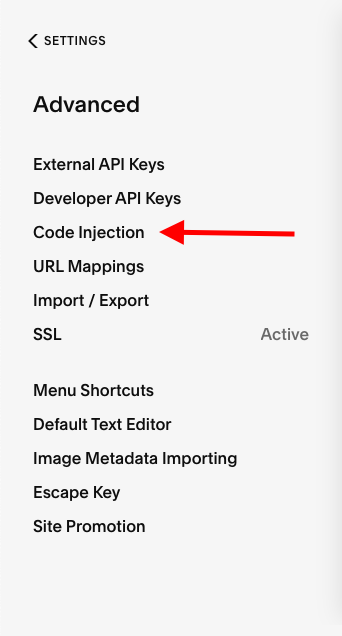
- Click Code Injection and in the Footer section, paste the script provided
- Click Save
Embed POWR Form Builder to your Squarespace Site
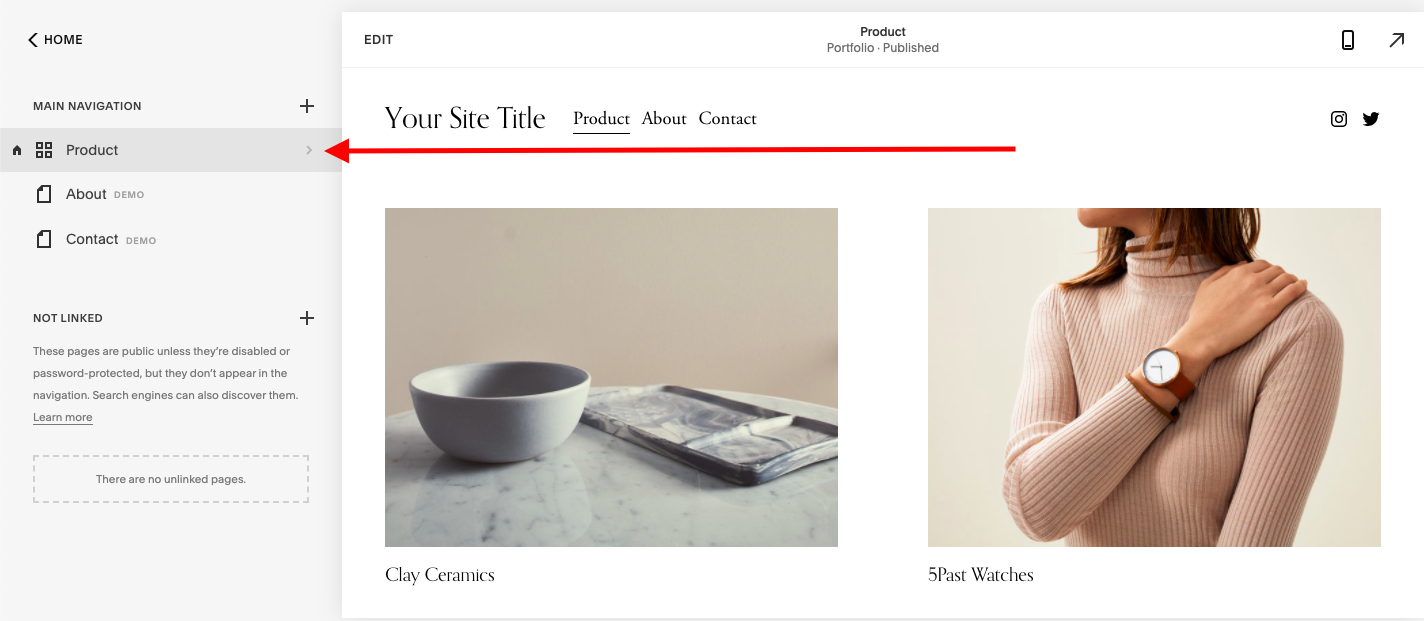
- Go to Pages and select the Product - Choose the product.
- Click on Edit.
- Click an Insert Point, where you would like the app to appear.
- Select Code from the list of options.
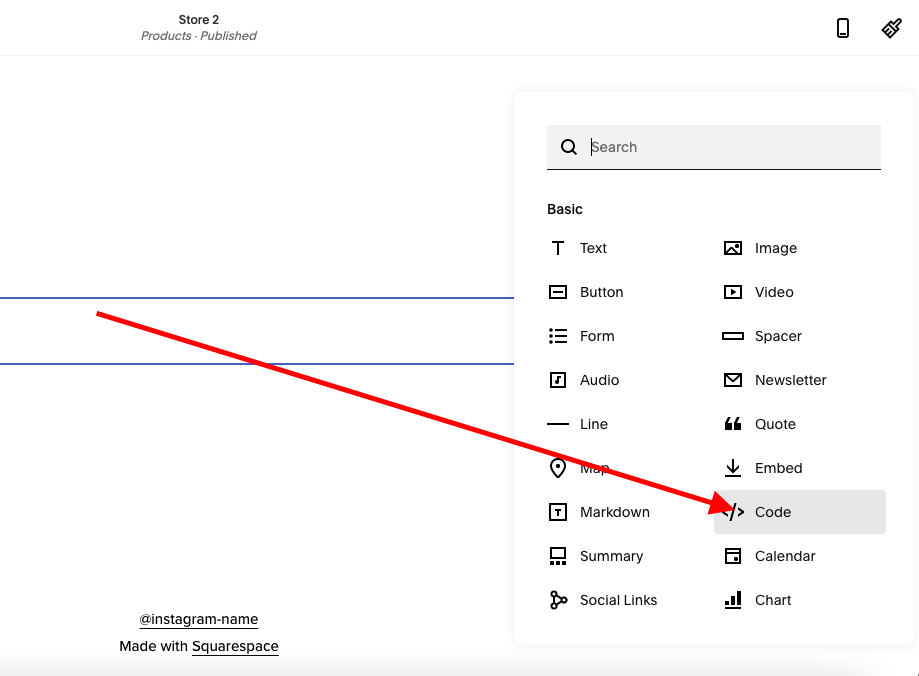
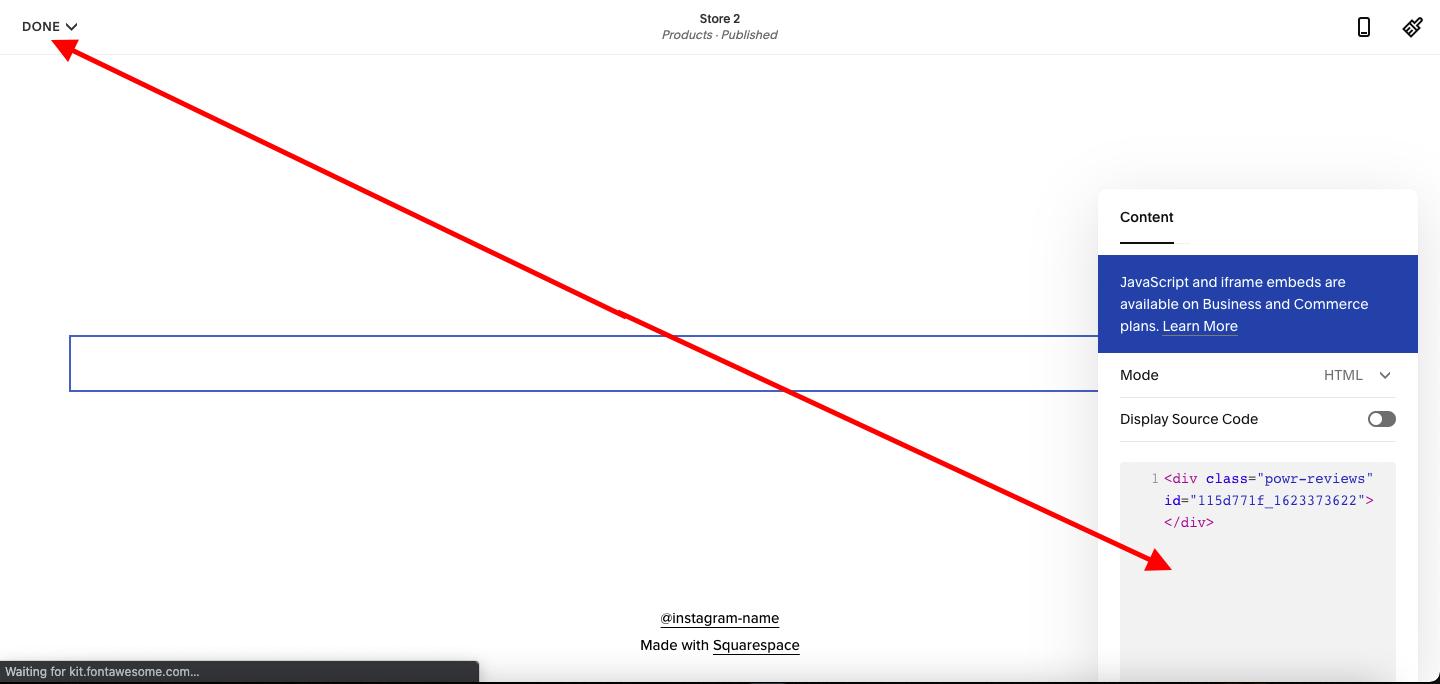
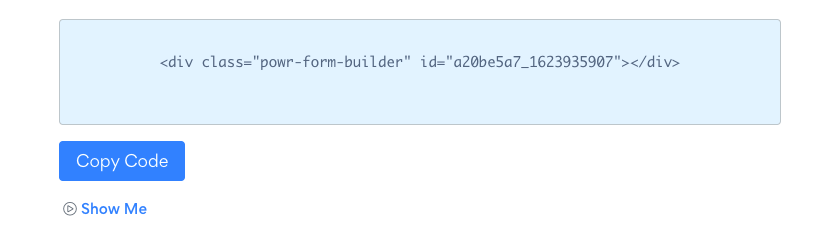
Copy and paste the code from POWR.io (example below) into the text field.
Hover on the Done button and click Save to publish your changes.