
How to Auto-Play Videos in POWR Sliders
A video that starts playing on its own can catch a visitor’s eye the moment they land on your page. With the Autoplay option in your POWR Slider, you can have your first video begin playing automatically, so you can show off a product demo, a brand story or a highlight reel without asking visitors to press play. In this article we’ll walk you through how to turn on autoplay for videos in your POWR Slider in just a few simple steps, along with a few tips to help it work smoothly.
Autoplay for videos is a Starter feature, so it’s available on the Starter plan and above. If you’re on the free plan, you can upgrade at any time to unlock it. To compare plans and see everything included, visit our Pricing Page.
Autoplay Options
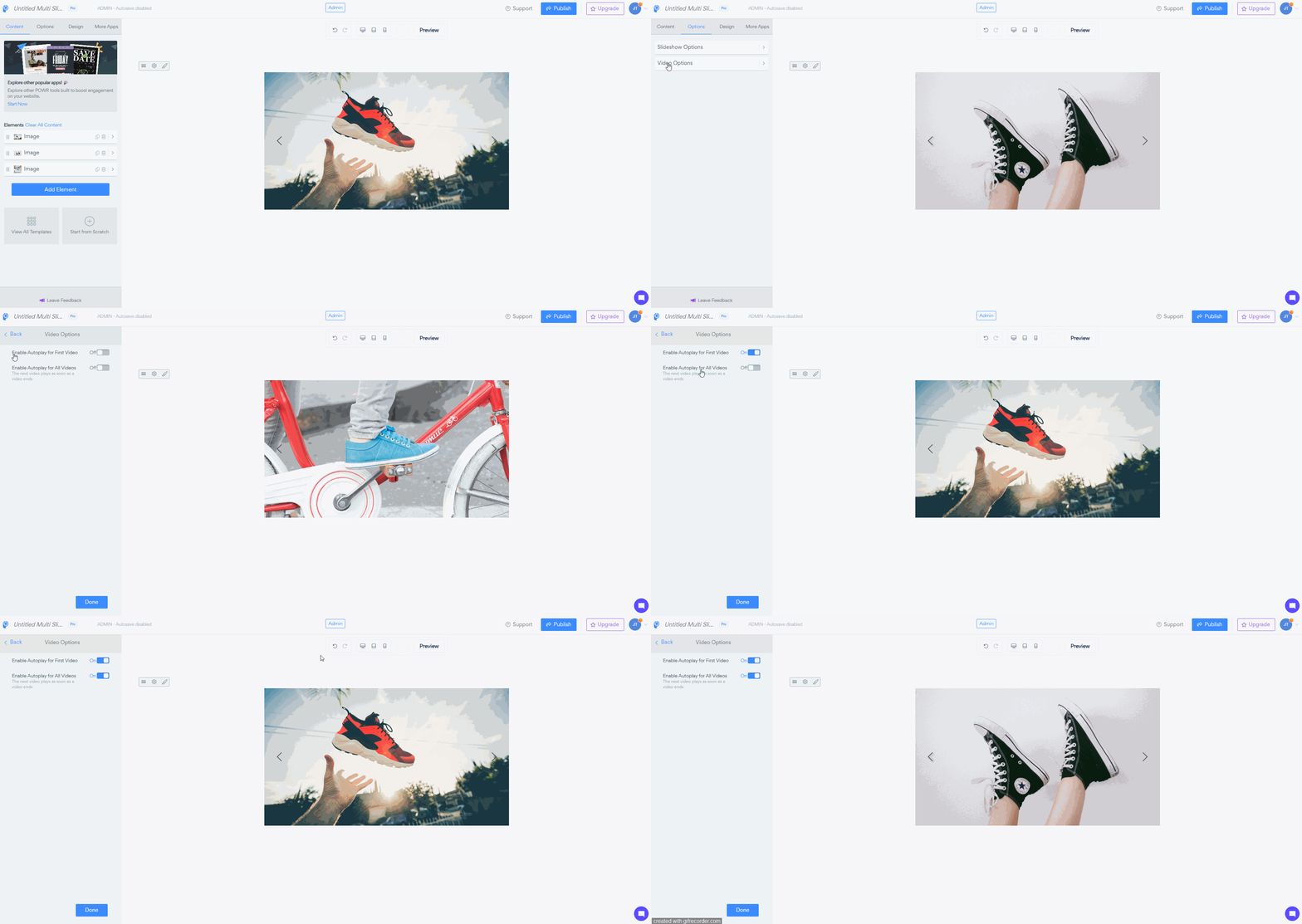
Your POWR Slider now gives you two autoplay options under Video Options:
Enable Autoplay for First Video: the first video in your Slider starts playing automatically when the page loads.
Enable Autoplay for All Videos: the next video plays as soon as the current video ends, so your visitors can watch the whole series without clicking.
To turn them on, follow these steps:
Open your Slider in the POWR Editor.
Go to Design and select Video Options.
Switch on Enable Autoplay for First Video if you want the first video to start on its own.
Switch on Enable Autoplay for All Videos if you want each video to play right after the previous one finishes.
Click Publish to save your changes.
You can use either option on its own or turn both on together.
Autoplay is a simple way to make your Slider more engaging and put your video front and center. Once it’s switched on and your changes are published, your first video will start playing for visitors when the page loads. If you have any questions or autoplay isn’t working as expected, our support team is always here and happy to help, so don’t hesitate to reach out!
Need Help?
If you need help or have questions about our apps, our support team is happy to assist.
👉 Contact our support team
When you contact us, you'll be prompted to authenticate your email by signing in, and we'll email you a confirmation code. This helps ensure our support team's reply reaches you without issues.
For more information about available features, visit our Pricing Page:
https://www.powr.io/pricing