
How to Add a Photo to Sliders or Galleries
A slider or gallery is only as good as the photos in it. Whether you’re showcasing your latest products, a portfolio of your work or moments from a recent event, adding images to your POWR Slider or Gallery is a quick way to bring your site to life. You can upload photos straight from your device, arrange them in the order you like and customize how they appear to your visitors. In this article we’ll walk you through how to add a photo to your slider or gallery in just a few simple steps.
Open the POWR Editor and go to the Content section.
In the Add Element: section, select Image
Select an existing image in your Recent Files, Upload a new image, use the image URL, or choose a Stock Image to add to your Gallery
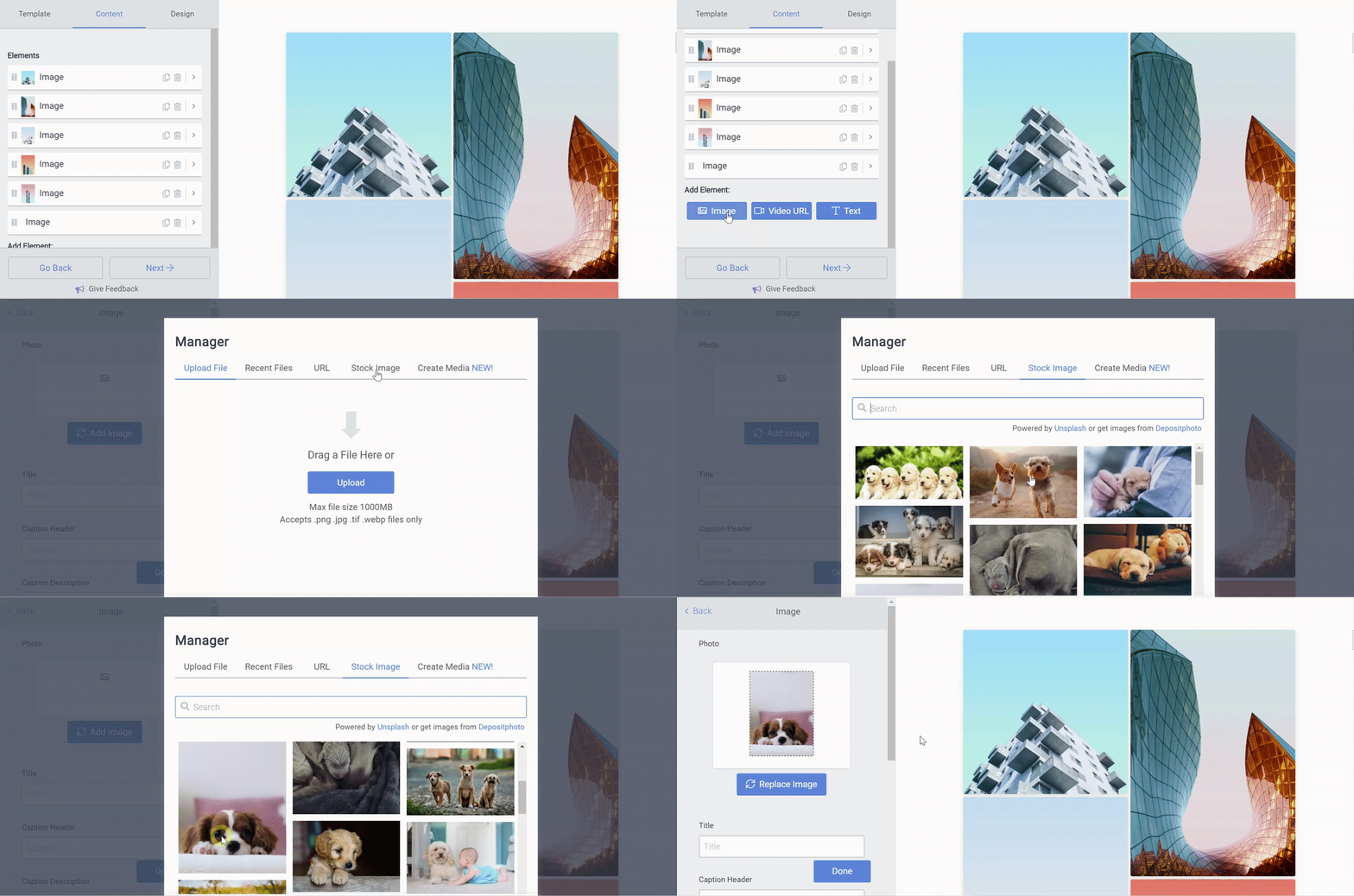
In Sliders
Open the POWR Editor and go to the Content section.
Click Add Element to open the File Manager.
Select Image and the click Add Image
Select an existing image in your Recent Files, Upload a new image, use the image URL, or choose a Stock Image to add to your Slider
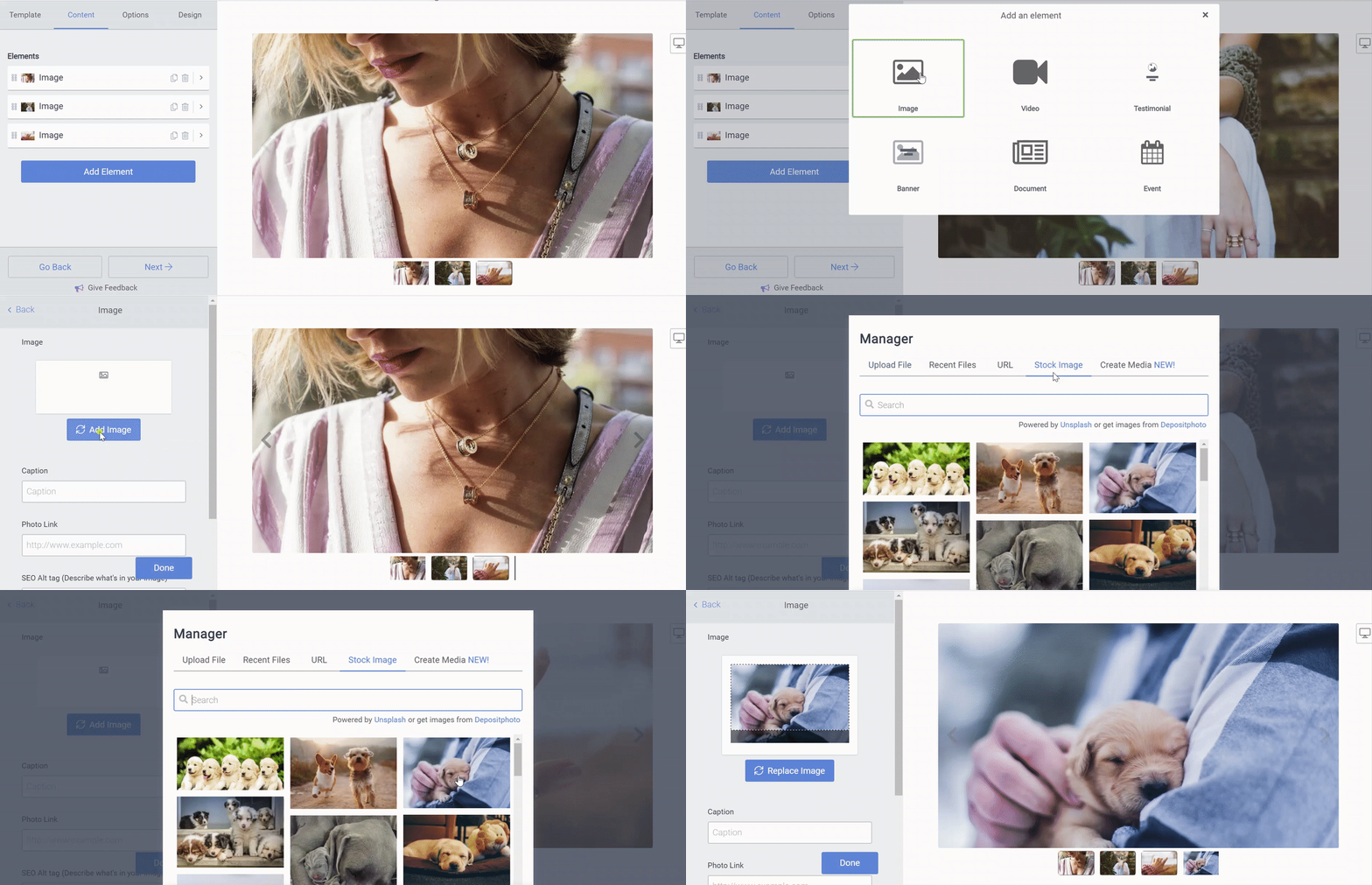
Note: Uploading very large files or selecting more than three files at a time can freeze the Image Uploader. If the load time last more than thirty seconds, cancel and try again with a smaller file, or fewer files.
Adding photos to your slider or gallery is a quick process, and you can come back to add, remove or reorder images whenever you like. Once you’ve published your changes, your new photos will appear on your live site right away. If you have any questions about adding images or a photo isn’t showing up as expected, our support team is always here and happy to help, so don’t hesitate to reach out!
Need Help?
If you need help or have questions about our apps, our support team is happy to assist.
👉 Contact our support team
When you contact us, you'll be prompted to authenticate your email by signing in, and we'll email you a confirmation code. This helps ensure our support team's reply reaches you without issues.
For more information about available features, visit our Pricing Page:
https://www.powr.io/pricing