
How to add videos to POWR Sliders and Galleries
A well-placed video can say more than a page of text. With POWR Sliders and Galleries, you can add videos alongside your photos, so you can show off a product demo, a customer story or a behind-the-scenes look right in the same display. Videos are added by link from platforms like YouTube or Vimeo, and you can mix them in with your images and arrange them in any order you like. In this article we’ll walk you through how to add videos to your POWR Slider or Gallery in just a few simple steps.
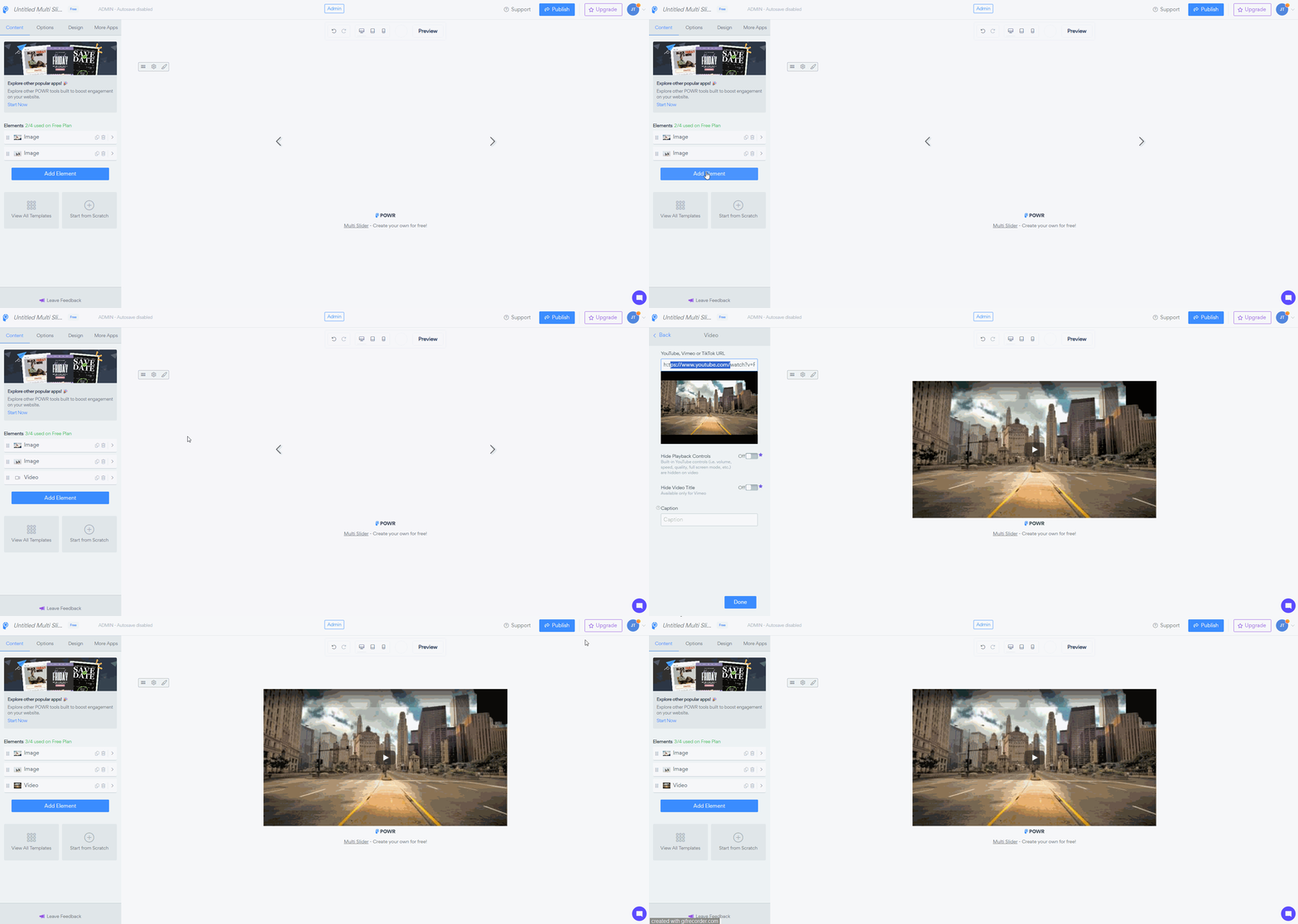
Visit the video on YouTube or Vimeo, and copy the URL.
Open the POWR Editor (or App Settings in Wix)
Create a new Video entry.
Paste the URL of your video into the field provided.
Click on 'Publish' to save changes
Videos must by publicly viewable to display in POWR Apps.
Adding videos to your Slider or Gallery is a quick way to make your content more engaging and give visitors a richer experience. Once you’ve added your video links and published your changes, your videos will appear on your live site alongside your photos. If you have any questions about adding videos or a video isn’t showing up as expected, our support team is always here and happy to help, so don’t hesitate to reach out!
Need Help?
If you need help or have questions about our apps, our support team is happy to assist.
👉 Contact our support team
When you contact us, you'll be prompted to authenticate your email by signing in, and we'll email you a confirmation code. This helps ensure our support team's reply reaches you without issues.
For more information about available features, visit our Pricing Page:
https://www.powr.io/pricing