
What happens after a visitor completes my form?
You’ve built your form, customized it to match your brand and embedded it on your site — but what actually happens once a visitor hits that submit button? Understanding what takes place after a form submission is just as important as the form itself. From confirmation messages and autoresponder emails to data storage and integrations, POWR Form Builder gives you a range of options to control exactly what your visitors see and what you receive after every submission. In this article we’ll walk you through everything that happens after a visitor completes your form and how you can customize each part of the post-submission experience to suit your needs.
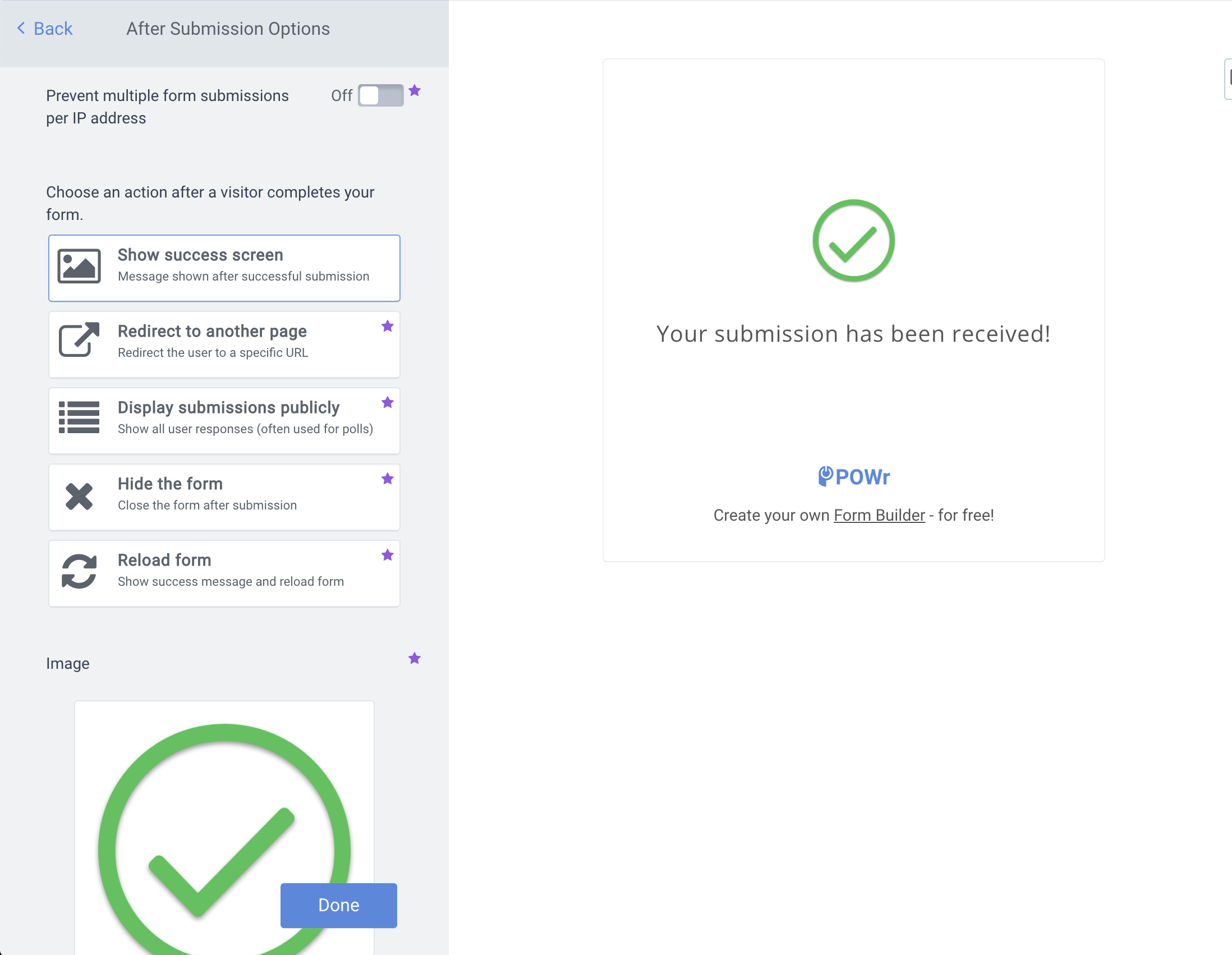
By default, when a customer or website visitor completes your form, a success screen will appear that says 'Your submission has been received!'.
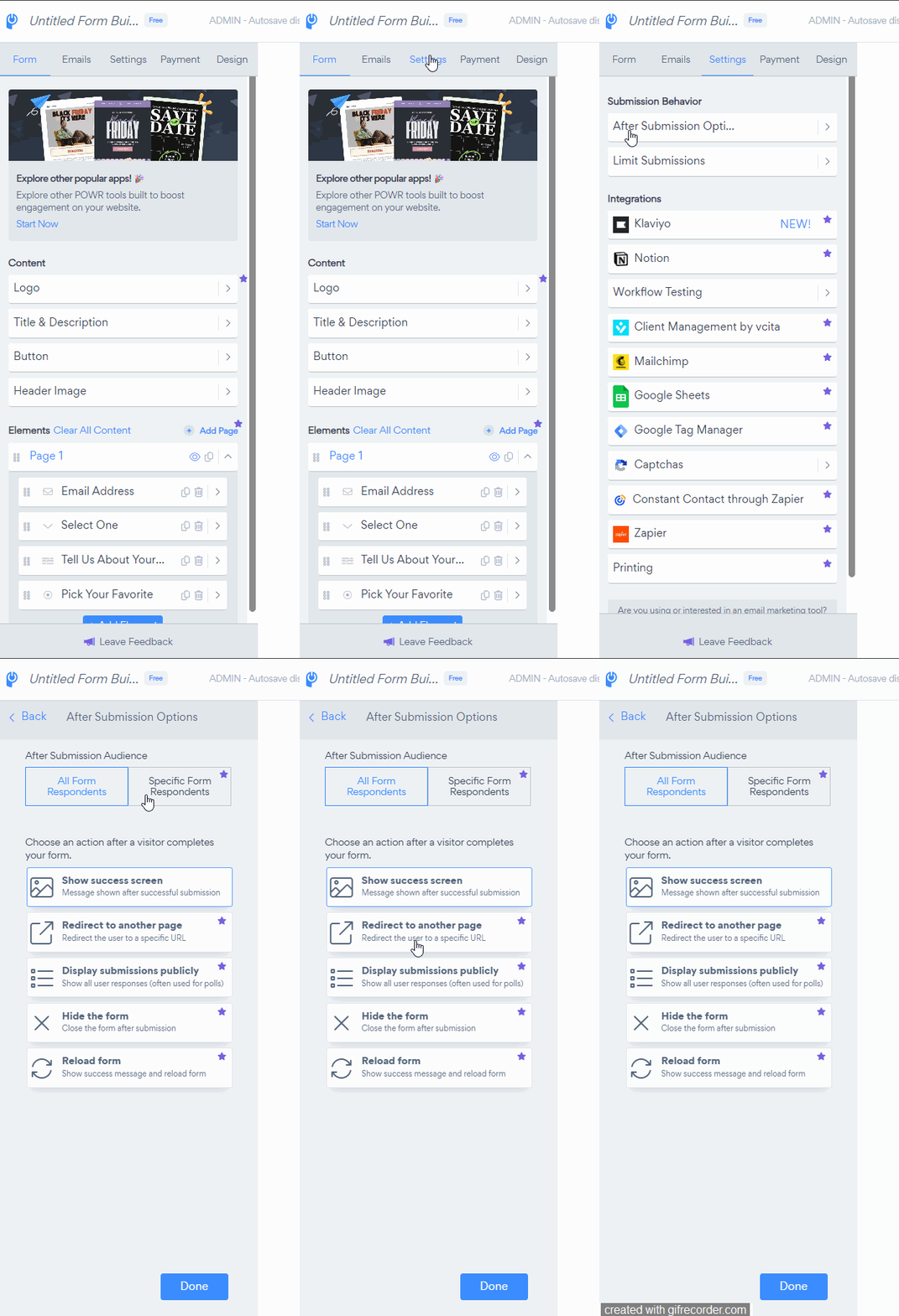
To customize what happens when a visitor completes your form, go to Settings > After Submission Options.
You can configure your form to allow respondents to submit the form every time they navigate to the page, or to block users that are accessing the form from the same IP address. Prevent multiple form submissions per IP address:
Toggled OFF - Disabled by default, this configuration will allow users to submit to the form multiple times.
Toggled ON - Enabling this will block a user from submitting to the form from the same IP address. Please note that all devices accessing the internet from the same router will share an IP address. Do not enable this if you plan to have multiple users submit to a form from a shared internet connection.
There are five options for actions available:
Show success screen - You can use this option to add a custom success message for your form submission. Choose your own text and if you're on the Starter plan (or above) you can upload your own image.
Redirect to another page - This option allows you to send your form respondents to another web page or website once they submit. This could be a customized 'Thank You' page or another page with a lead magnet that is only available to subscribers, for example.
Display submissions publicly - This option will show a custom success screen and a button to view the form results, most commonly used for polls or surveys.
Hide the form - Simply hides the form when submit is clicked.
Reload form - For forms that allow users to submit multiple times, this option adds a button to the success screen for respondents to reset the form for an additional submission.
The post-submission experience is a crucial part of your form’s journey — it’s your opportunity to confirm to visitors that their submission was received, follow up with them automatically and make sure their data lands exactly where you need it. With POWR Form Builder you have full control over every step of that process, from the success message they see to the email notifications you receive and the integrations that fire in the background. If you have any questions about setting up your post-submission options or need help getting things configured just right, our support team is always here and happy to help!
Need Help?
If you need help or have questions about our apps, our support team is happy to assist.
Contact our support team
When you contact us, you'll be prompted to authenticate your email by signing in, and we'll email you a confirmation code. This helps ensure our support team's reply reaches you without issues.
For more information about available features, visit our Pricing Page:
https://www.powr.io/pricing