
Payment shows up in my POWR Sales Dashboard but not in my PayPal/Stripe account
You’ve received a payment through your POWR form and it appears in your Sales Dashboard, but when you check your PayPal or Stripe account you’re not sure where it is. The good news is that every payment submission includes a confirmation code in its submission details, and you can use that code to find the exact transaction in your PayPal or Stripe account. In this article we’ll show you where to find the confirmation code in POWR and how to use it to track down your payment.
Please note that all payment transactions that have been made through our apps are being sent directly to our user's PayPal/Stripe account and we don't have access to those transactions.
We recommend that you reach out to PayPal/Stripe directly and provide them with the confirmation code that can be found on your app's Sales Dashboard so they can help you with tracking that transaction.
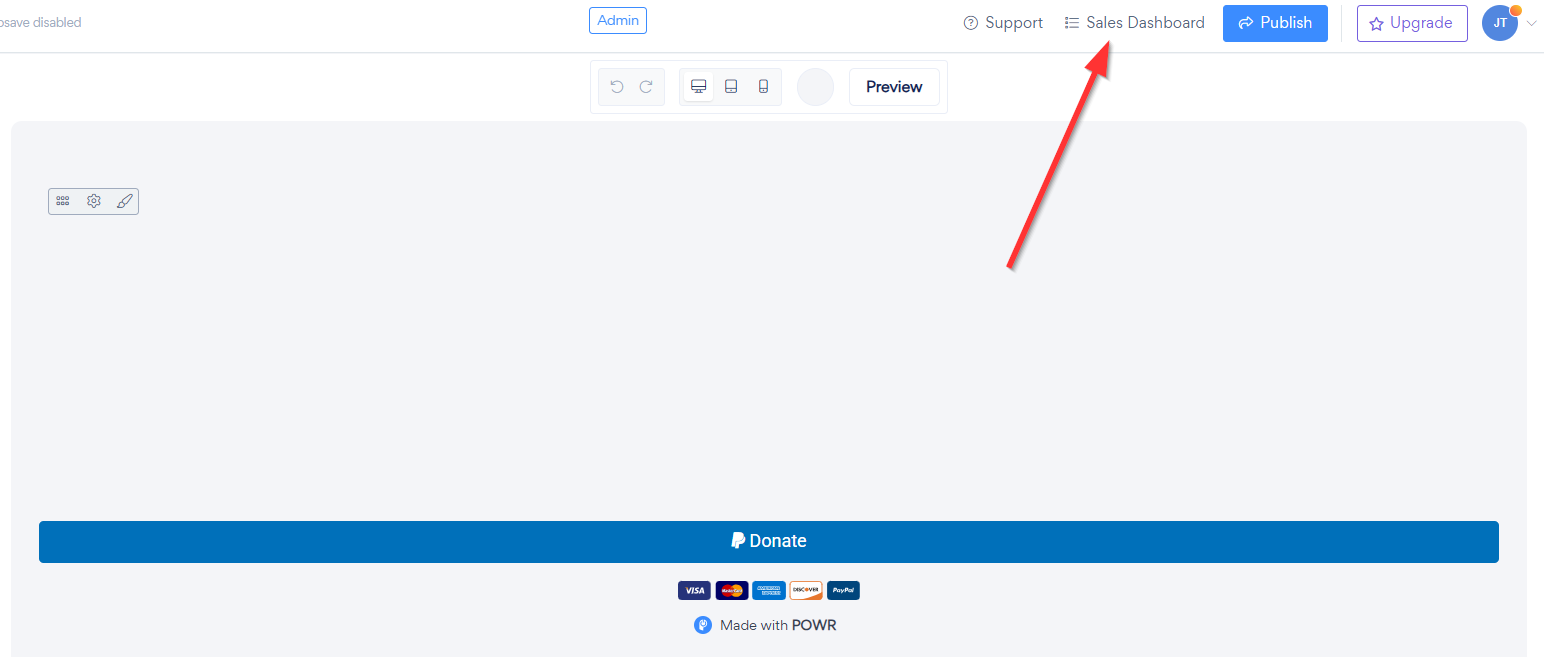
Open app settings > Sales dashboard > select transaction > copy the "Confirmation code"
Here's what a confirmation code looks like.

Using the confirmation code from your submission details is the quickest way to match a payment in your POWR Sales Dashboard with the transaction in your PayPal or Stripe account. Once you have the code, a quick search in your payment processor’s activity will show you exactly where the payment stands. If you’ve followed these steps and still can’t locate the transaction, please reach out to our support team with the confirmation code and a screenshot of the submission details, and we’ll be happy to help you track it down.
Need Help?
If you need help or have questions about our apps, our support team is happy to assist.
👉 Contact our support team
When you contact us, you'll be prompted to authenticate your email by signing in, and we'll email you a confirmation code. This helps ensure our support team's reply reaches you without issues.
For more information about available features, visit our Pricing Page:
https://www.powr.io/pricing