
How to add Options to a Payment Button
Not every product or service comes in just one version. Whether you’re selling a t-shirt in multiple sizes, a service package with different tiers or a product in several colors, your customers need a way to choose exactly what they want before they pay. With POWR’s PayPal Button and payment features, you can add options to your payment button so that visitors can select their preferred size, color, quantity or any other variation right on your page, with no separate product pages required. In this article we’ll walk you through how to add options to your payment button in just a few simple steps.
You can add different options to a Payment Button (this is a Starter Feature) by following these steps:
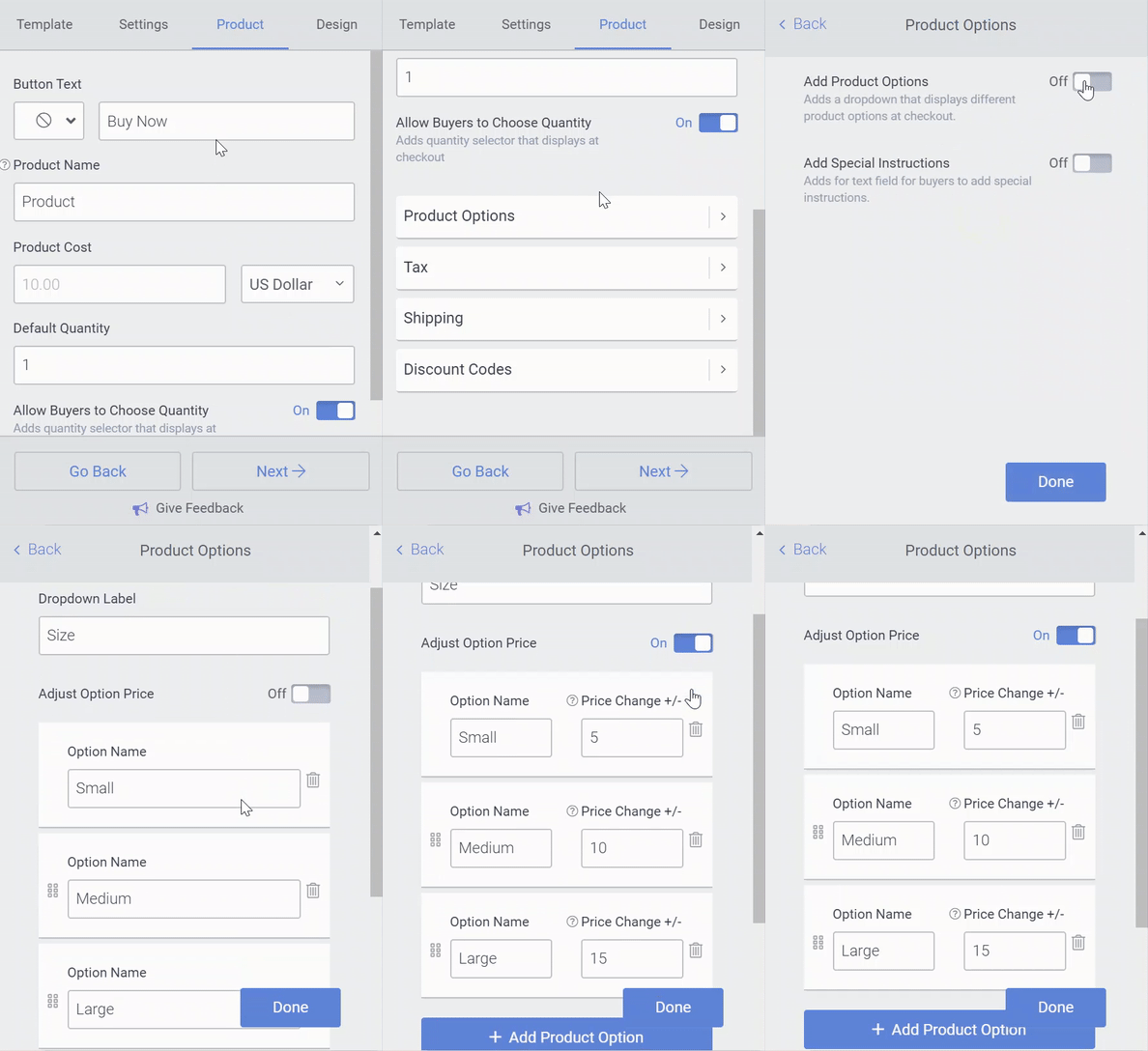
Open the POWR Editor and go to the Content section
Open Product Options
Toggle on Add Product Options
Now you can add different prices for each option by toggling on Adjust Option Price field next to the Option Name.
Adding options to your payment button is a simple way to give customers more choice while keeping the checkout process quick and easy. Instead of creating a separate button for every variation, you can offer everything from a single, tidy button that gathers the details you need before the payment goes through. If you have any questions about setting up your options or run into any trouble along the way, our support team is always here and happy to help, so don’t hesitate to reach out!
Need Help?
If you need help or have questions about our apps, our support team is happy to assist.
👉 Contact our support team
When you contact us, you'll be prompted to authenticate your email by signing in, and we'll email you a confirmation code. This helps ensure our support team's reply reaches you without issues.
For more information about available features, visit our Pricing Page:
https://www.powr.io/pricing