
How do I upgrade my POWR apps?
Upgrading your POWR app gives you access to premium features like removing branding, increasing limits, unlocking integrations, and advanced customization options.
Whether you're using POWR on Wix, Shopify, Squarespace, or a custom website, this guide will walk you through how to upgrade your app and manage your subscription.
This article contains the following topics:
Why Upgrade a POWR App
Upgrading unlocks powerful features and removes limitations on your app. Some examples include:
Removing POWR branding
Access to integrations (like POWR Email Marketing, Mailchimp, Klaviyo, Google Sheets, Zapier)
Increased limits for form submissions, email sends, products, etc.
Advanced display rules, design options, and conditional logic
Priority support assistance
You can compare plans and pricing here.
Upgrade from your POWR Account
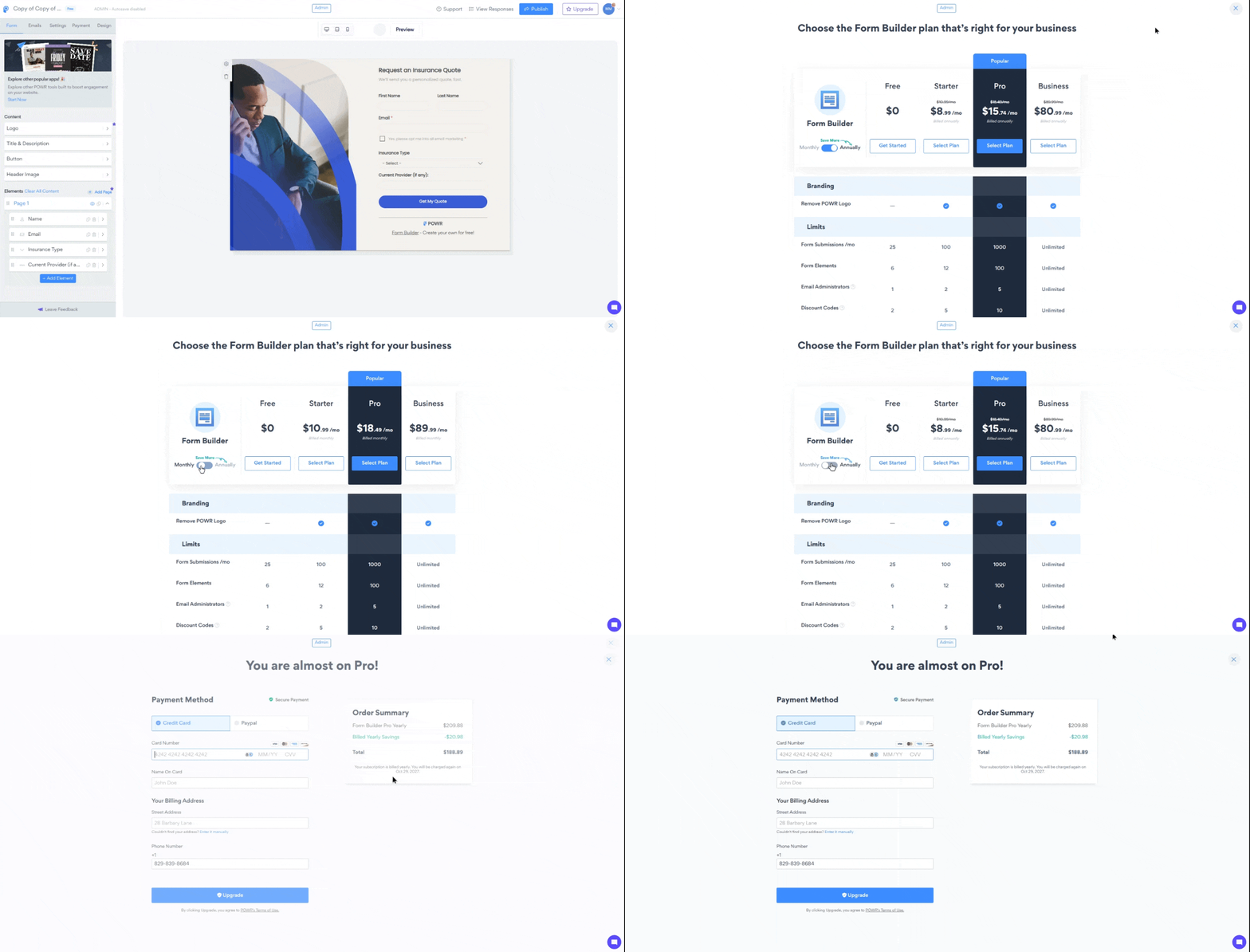
If you’re managing your apps from your POWR account, you can upgrade from there directly, either from the POWR dashboard or the app editor. In order to upgrade the app directly, do the following:
Go to your POWR dashboard
Click "Edit" on the app you want to upgrade
In the app editor, click the Upgrade button in the top-right corner
Choose a plan (Starter, Pro, or Business)
Complete checkout with your preferred payment method, refresh the page, and your app will instantly reflect the upgraded features.
Upgrade through Wix and Shopify
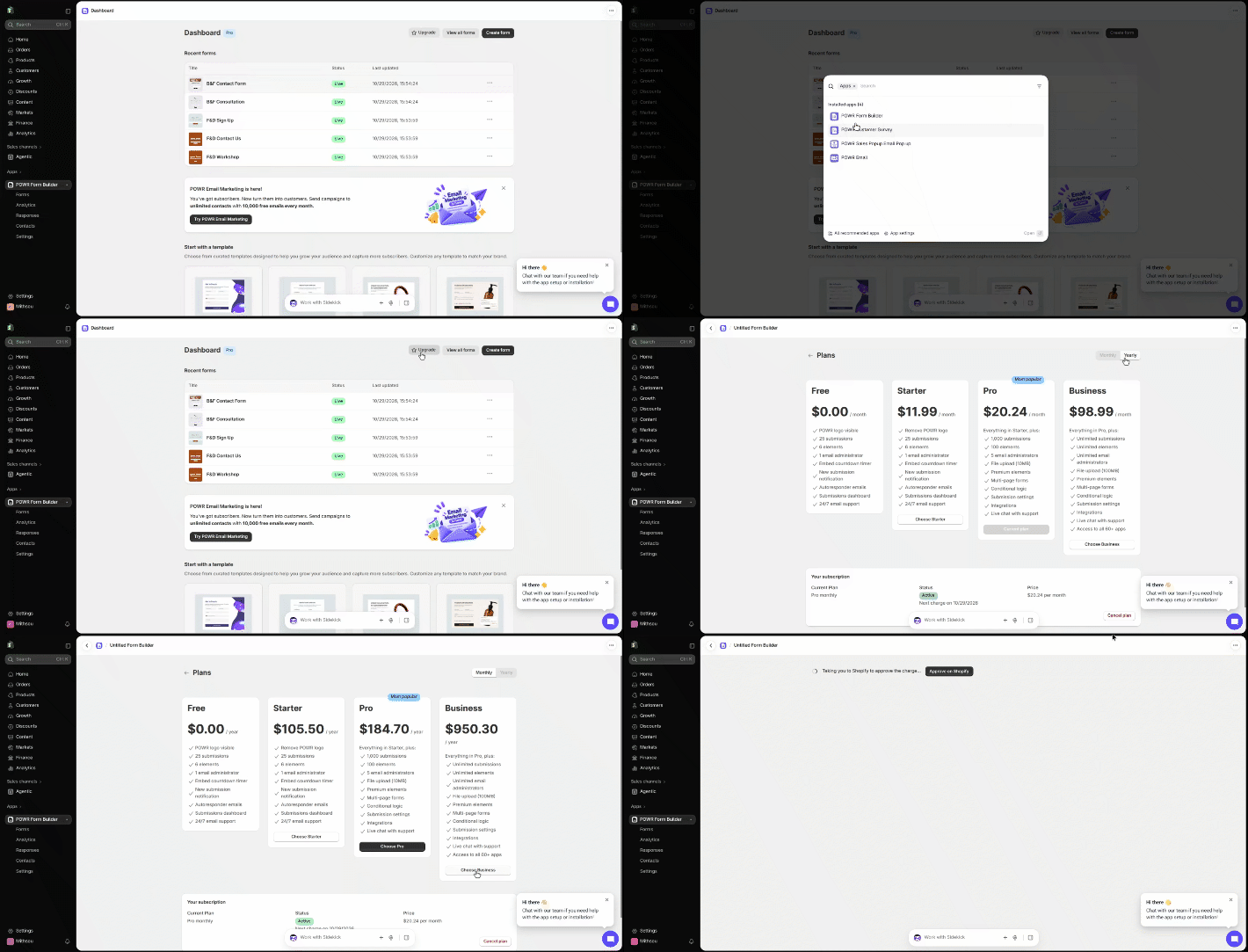
If you're using POWR on a platform like Wix, Shopify, or Squarespace, the upgrade must happen directly through that platform's billing system.
Upgrade through Wix: Go to Manage Apps in your site's dashboard > Click "Upgrade" next to the POWR app you want to upgrade (or go to the page where you installed the app, open its editor, and click the Upgrade button)
Upgrade through Shopify: Go to Apps > Click on the POWR app you want to upgrade > Click the "Upgrade" button
Need Help?
If you're unsure which plan is right for you, or need help upgrading or accessing features, our support team is happy to help.
👉 Contact our support team
When contacting us, you'll be prompted to authenticate your email by signing in, and a confirmation code will be emailed to you. This helps ensure our support team's reply will be delivered to you with no issues.
For more information about available features, visit our Pricing Page.