
Setting up Payment Button in Wix
Setting up a Payment button in Wix takes just a few clicks.
1. Add to Site
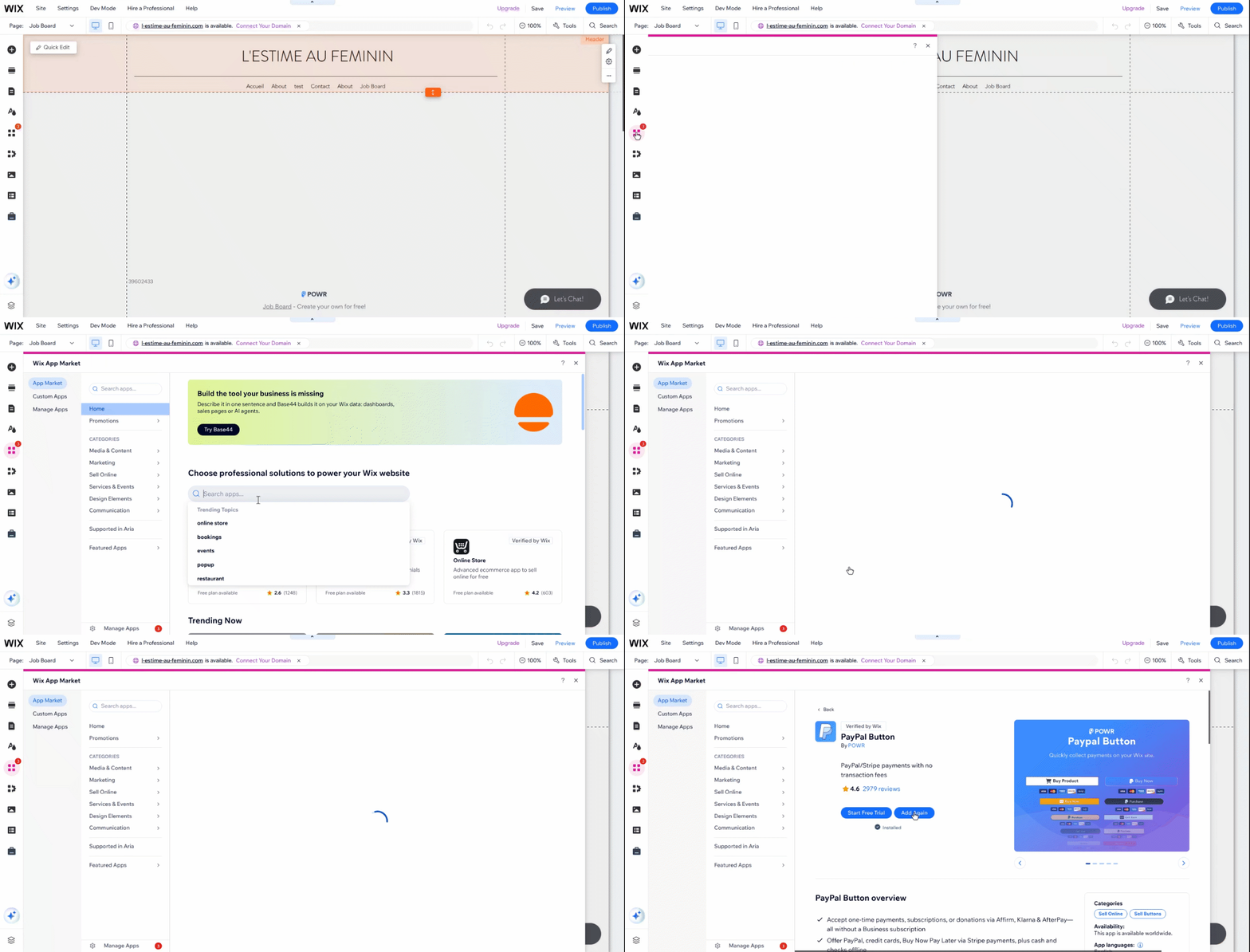
Open the page where you want to install the Payment button in the Wix editor
Click the App Market icon on the left side, look for POWR PayPal Button, and click "Add to site" or "Add Again".
A new instance of the app will be added to your page
Double-click the app to open its Settings panel, which will allow you to change the design and styling of the button under the "Design" tab, and add your key informations.
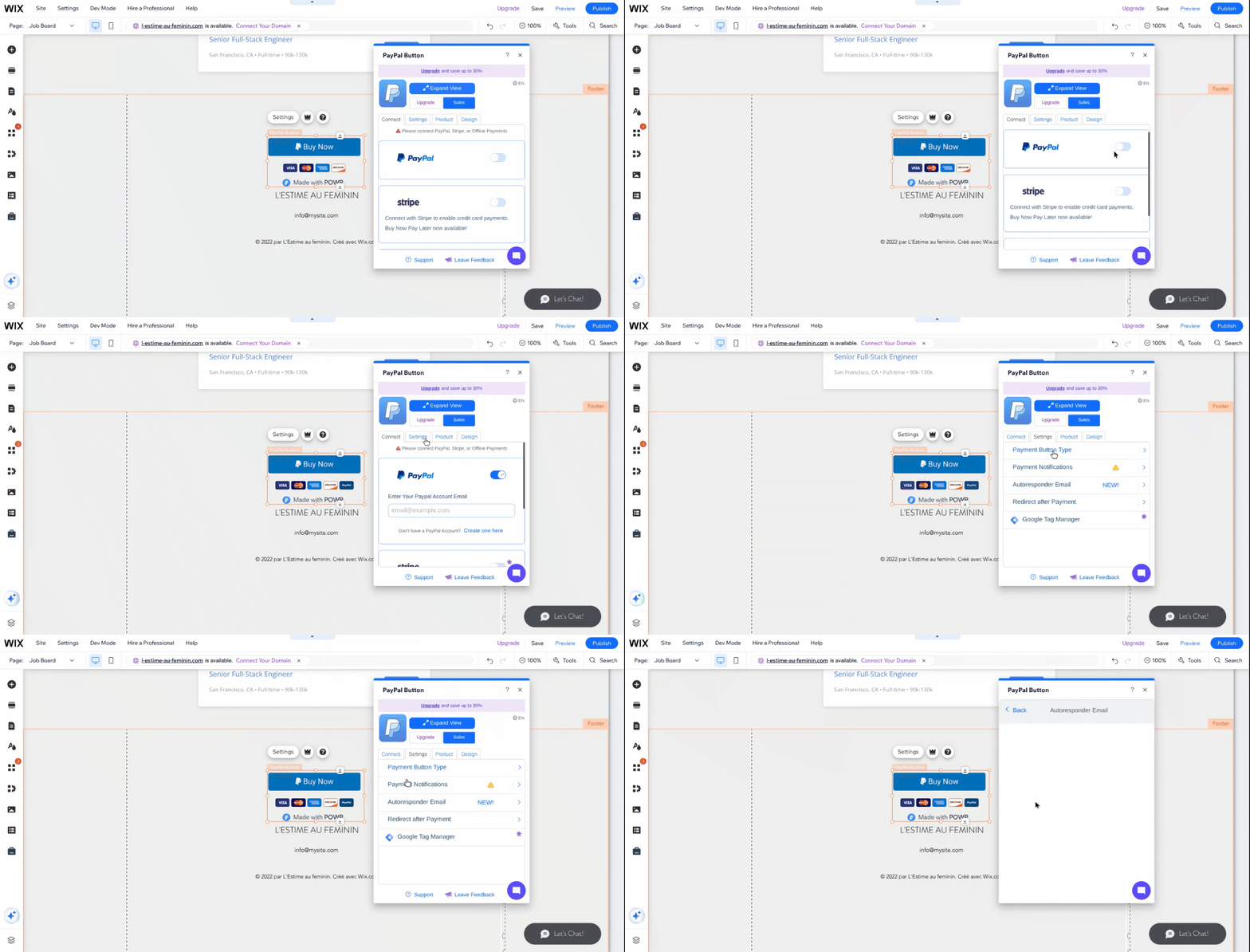
2. Fill in the key information under the settings and the "Connect" tabs
PayPal Account - add the mail address for the PayPal Account you want to receive your payments.
Button Text - Add the text you want to displaye on your button.
Product Name - what customers will see when they check out through PayPal.
Payment Type - can be One Time Purchase, Donation, or Subscription.
Product Cost - how much you want to charge your customers. Note: Leave this blank to let customers choose their own amount.
Payment Notifications - add an email address to get a notification each time somebody submits a payment.
Redirect after payments - add a URL that the payer will be redirected to after completing the payment
Autoresponder Email: create an atumatic email thatbyiur payer will receive upon completed payments
3. Finish up
Once you've filled in this information, publish your Wix site, and your Payment Button will be ready to collect payments.
You can also set up Shipping and Tax, choose a different currency, or adjust the design and styling of your button in the App Settings.
Need Help?
If you need any help or have any questions about our Form Builder, our support team is happy to help.
👉 Contact our support team
When contacting us, you'll be prompted to authenticate your email by signing in, and a confirmation code will be emailed to you. This helps ensure our support team's reply will be delivered to you with no issues.
For more information about available features, visit our Pricing Page.