
How to trigger POWR Popup on Click in Shopify
You can configure your POWR Popup to appear when a visitor clicks on specific elements of your webpage, such as text, images, or buttons. This method provides a more interactive experience compared to automatic popups.
In This Article:
How to Set Up Click-to-Trigger for POWR Popup
Add your POWR Popup to the desired page.
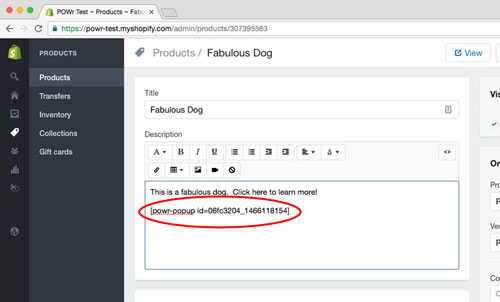
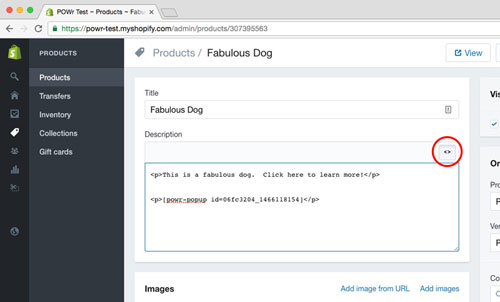
Switch to HTML mode in your website editor clicking on <>.
Wrap the element (text, image, or button) you want to use as a trigger with the
trigger-popupclass.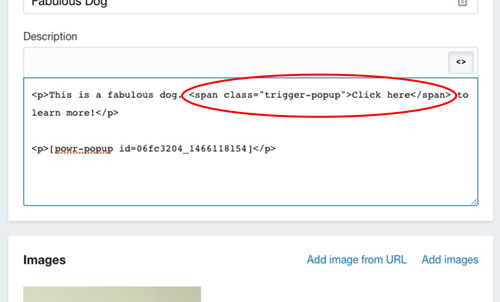
For example:
<span class="trigger-popup">Click here</span>Ensure the Popup's display settings are configured correctly.
In the POWR Editor, navigate to Controls > Schedule & Triggers.
Set "How often should visitors see the popup?" to "Every time anyone visits".
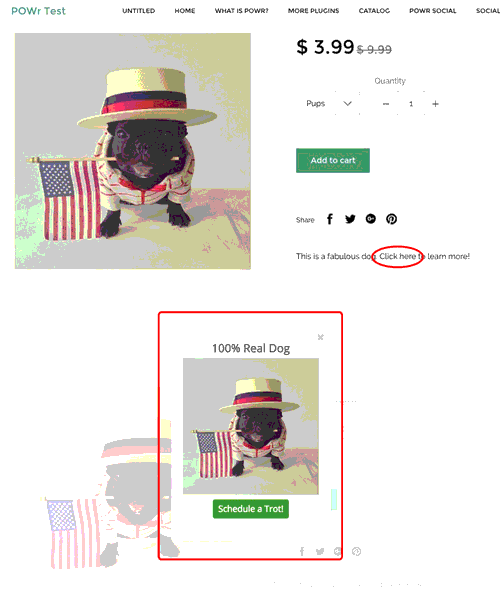
Note: If instead you want the Popup to appear on a new page after your visitor is redirected, just add the Popup to that new page instead.
⚠️ Important Notes
The
trigger-popupclass works best with<p>,<img>, and<button>elements. It may not function correctly with<div>elements.If you want the Popup to appear on a new page after redirection, add the Popup to that new page instead.
FAQs
Q: Will the Popup appear automatically without a click? A: No, when using the trigger-popup class, the Popup will only appear upon clicking the designated element. Ensure that automatic display settings are disabled if you prefer click-only triggers.
Need Help?
If you need any help or have any questions about our Form Builder, our support team is happy to help.
👉 Contact our support team
When contacting us, you'll be prompted to authenticate your email by signing in, and a confirmation code will be emailed to you. This helps ensure our support team's reply will be delivered to you with no issues.
For more information about available features, visit our Pricing Page:
https://www.powr.io/pricing