
How To Setup Stripe on POWR Payment Button
Connect a Stripe account to the POWR Payment Button
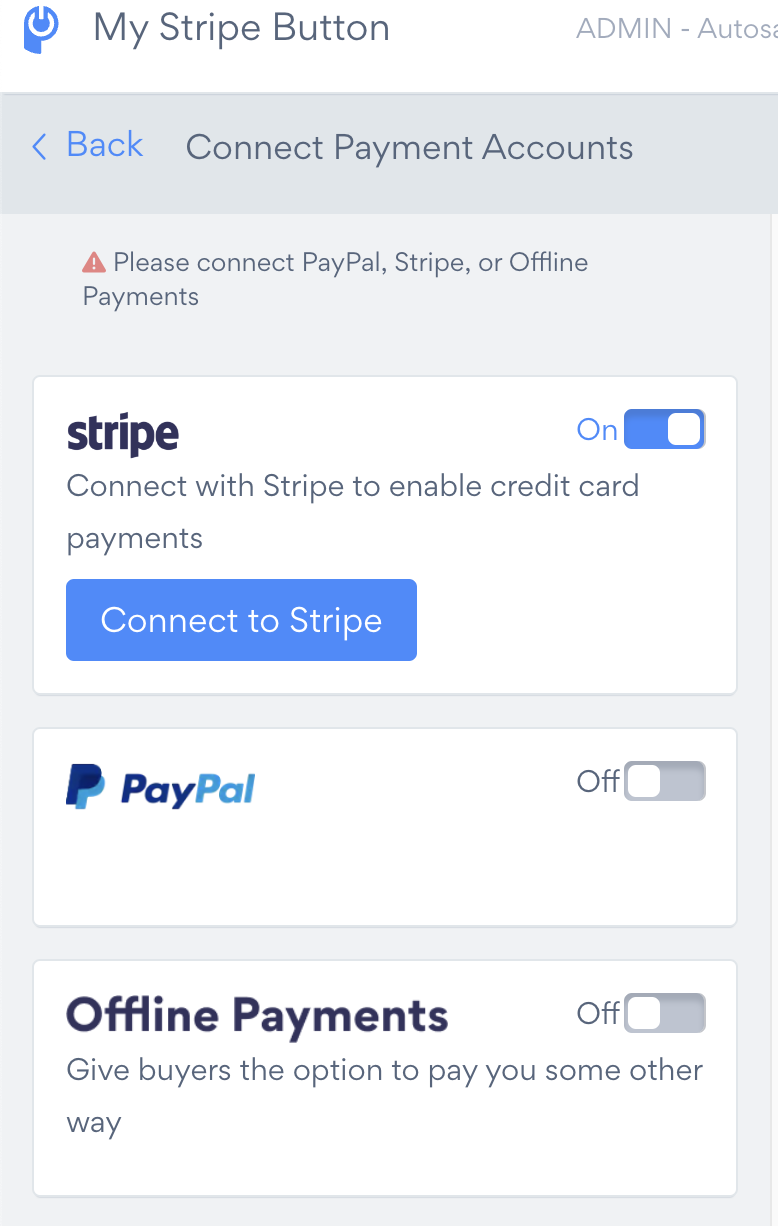
In the POWR Editor for the Stripe Button app, go to
Settings > Connect Payment Accounts > Connect to Stripe.
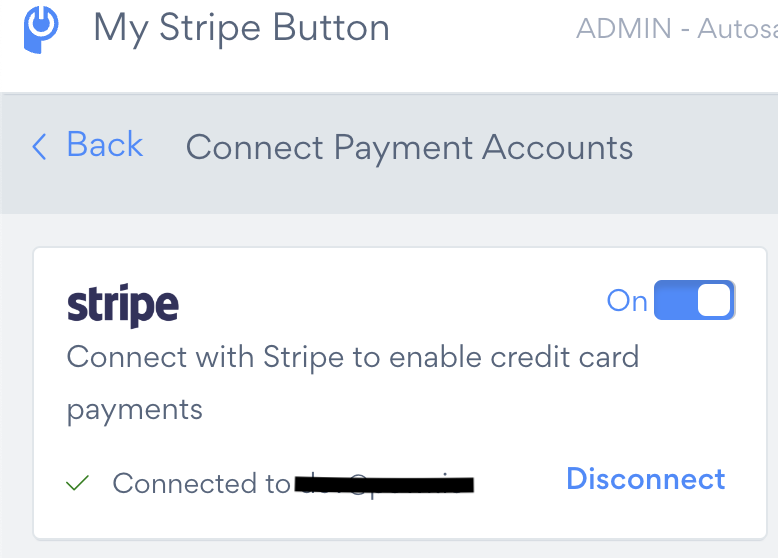
A new window will open to either log into your existing Stripe account or create a new one. Once completed, Stripe is now connected to your Payment Button.
Create a New Stripe Account
If you are creating a new Stripe account, make sure you have the following information:
Bank account details (transit number, institution number, and account number)
Social Insurance Number or Business Number (Tax ID) if you’re a corporation,
then follow these 4 steps:
Click on Connect to Stripe in the POWR Editor.
Fill in the required personal and business details, then click Continue.
Link your bank account with Stripe, then click Authorize.
Verify all information is correct, click Continue, then Agree & submit.
Your Stripe account is now connected to your Payment Button.
Enable One-Click Checkout with Link
To reduce cart abandonment with one-click checkout, follow these steps:
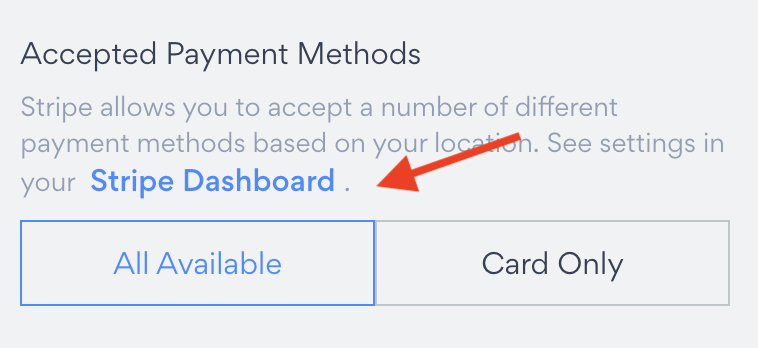
In the POWR Editor, go to the Product tab, and scroll to Accepted Payment Methods
Ensure All Available is highlighted in blue.
Click Stripe Dashboard to navigate to your dashboard and modify what payment methods you want to accept(popular methods like Google Pay & Apple Pay are pre-selected).
Other Stripe-Related Articles
Need Help?
If you need any help or have any questions about our Form Builder, our support team is happy to help.
👉 Contact our support team
When contacting us, you'll be prompted to authenticate your email by signing in, and a confirmation code will be emailed to you. This helps ensure our support team's reply will be delivered to you with no issues.
For more information about available features, visit our Pricing Page.