
How to Install POWR on BigCommerce
From your BigCommerce account, go to Apps > Marketplace.
Search for POWR and select the app you'd like to try.
Note: If you'd like all-in-one access to all apps, choose POWR Pack.
Click Install.
If you've installed POWR Pack, you will see the Dashboard:
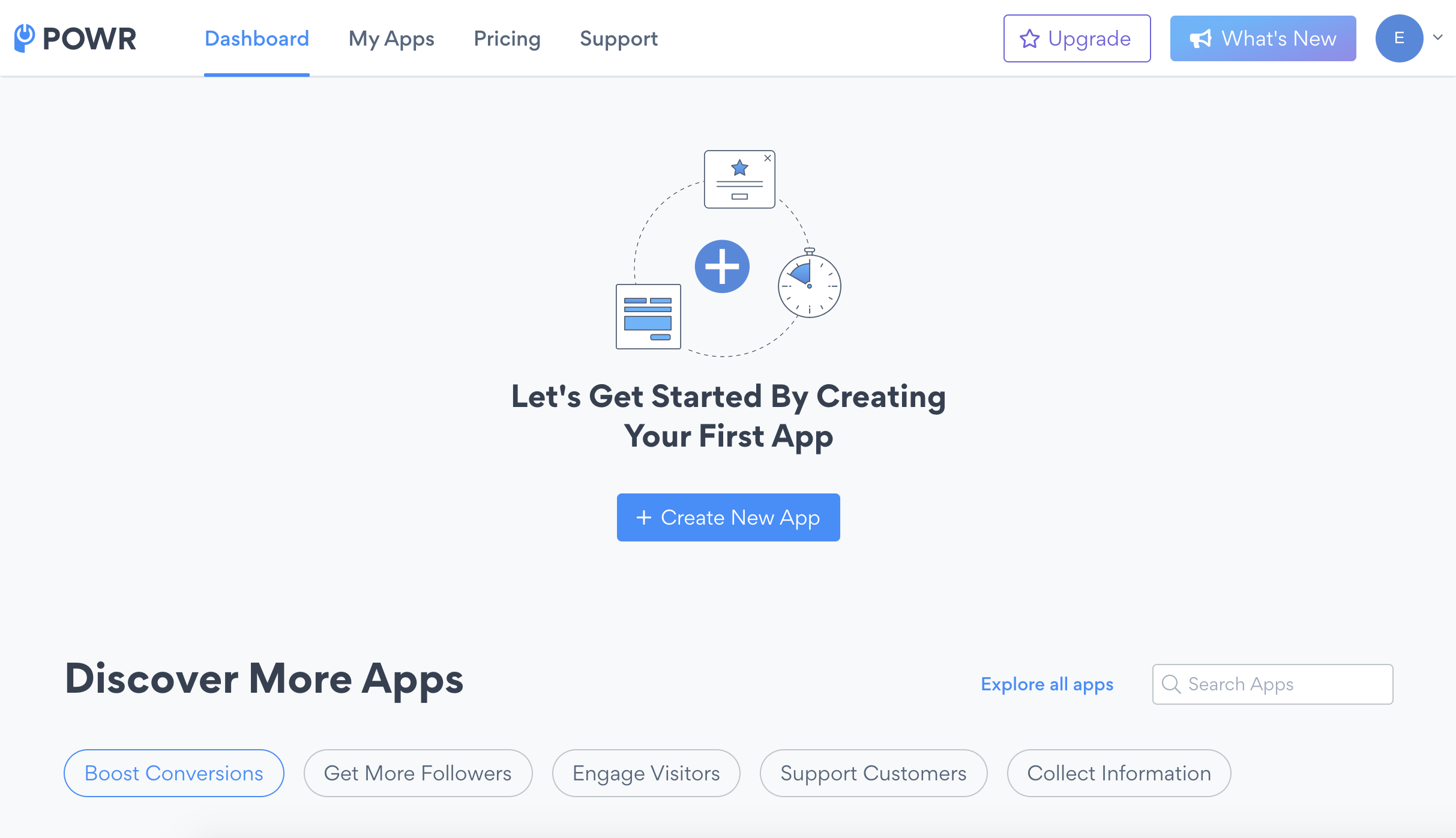
Click Create New App.
Select the first app you'd like to create from the app library:
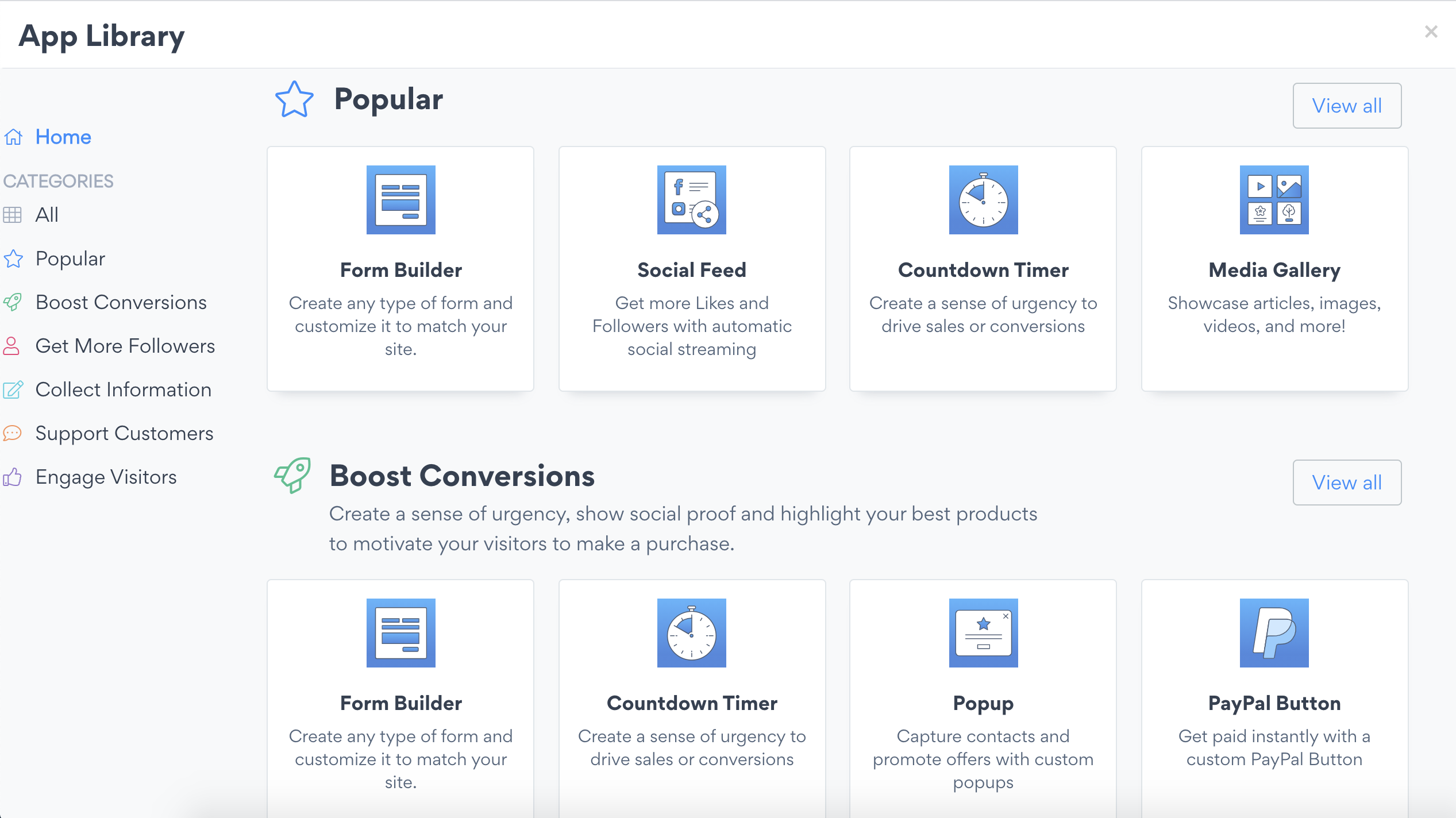
If you installed a specific app in the BigCommerce App Marketplace you will go straight to the POWR Editor.
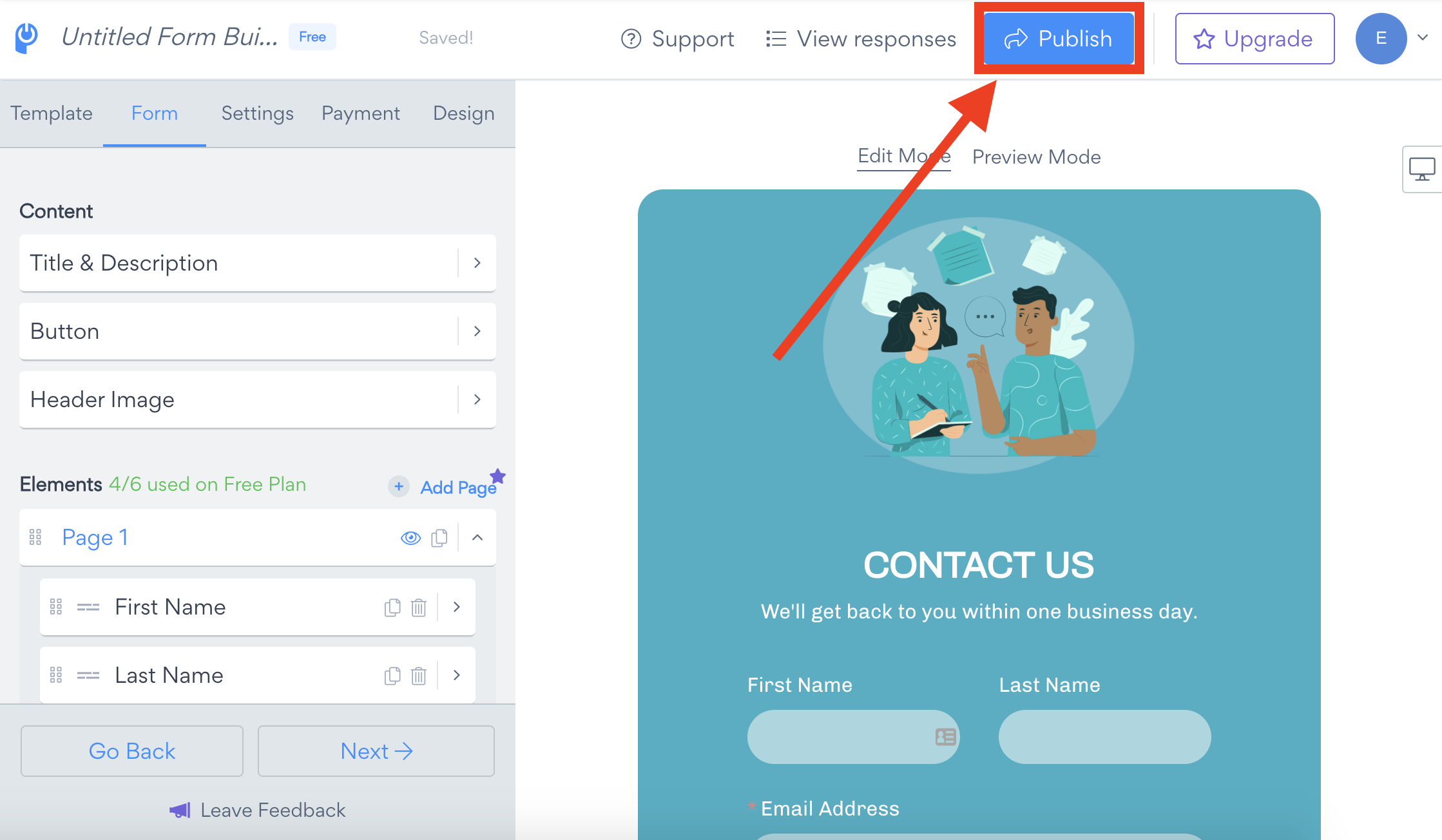
Edit your app as desired in the POWR Editor.
When you're ready to add it to your BigCommerce site, click Publish.
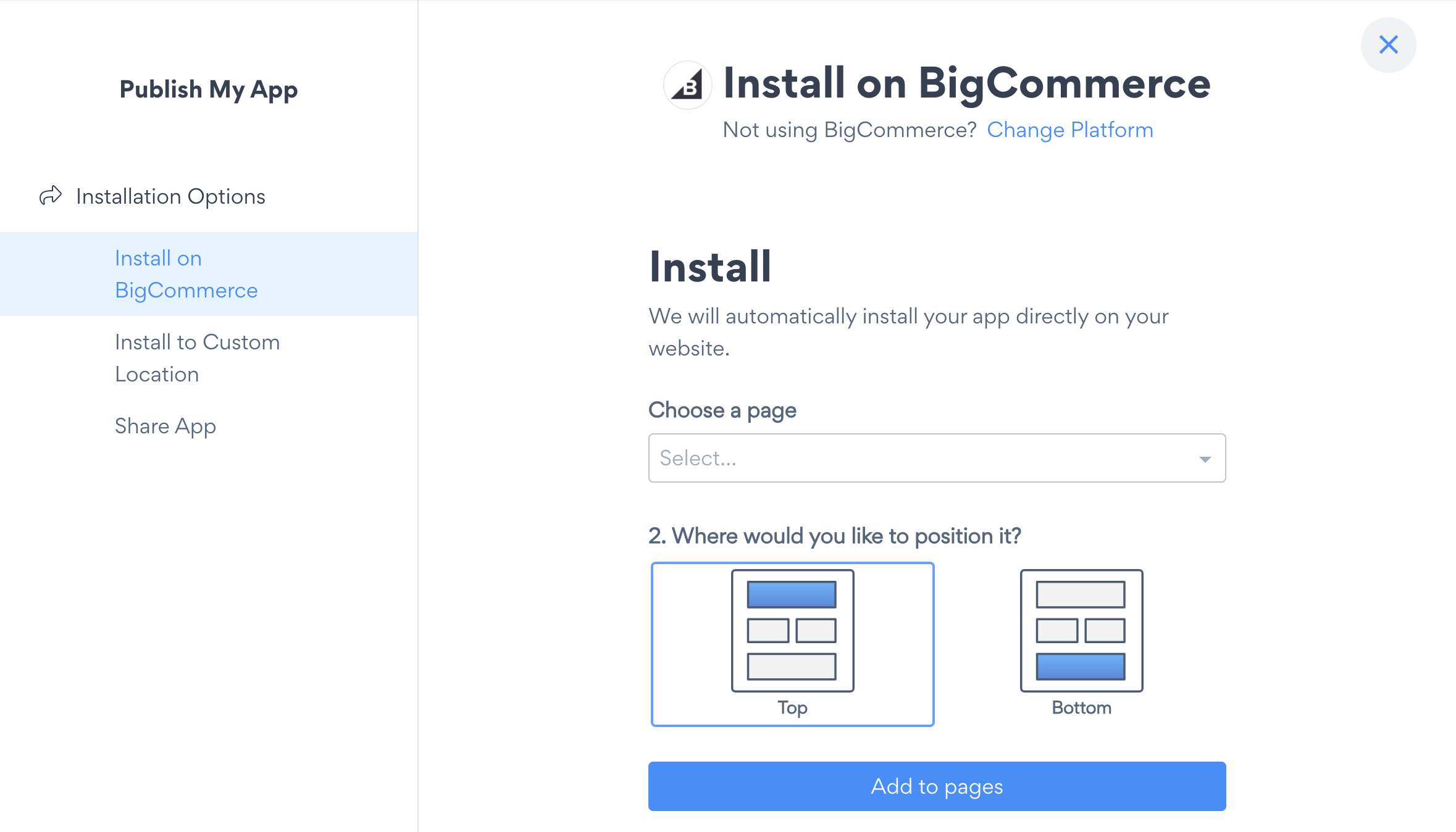
Select the pages on which you'd like to add your app, and their position on the page:
Congratulations! Your app is now live on your site. You can view it to check how it looks live.
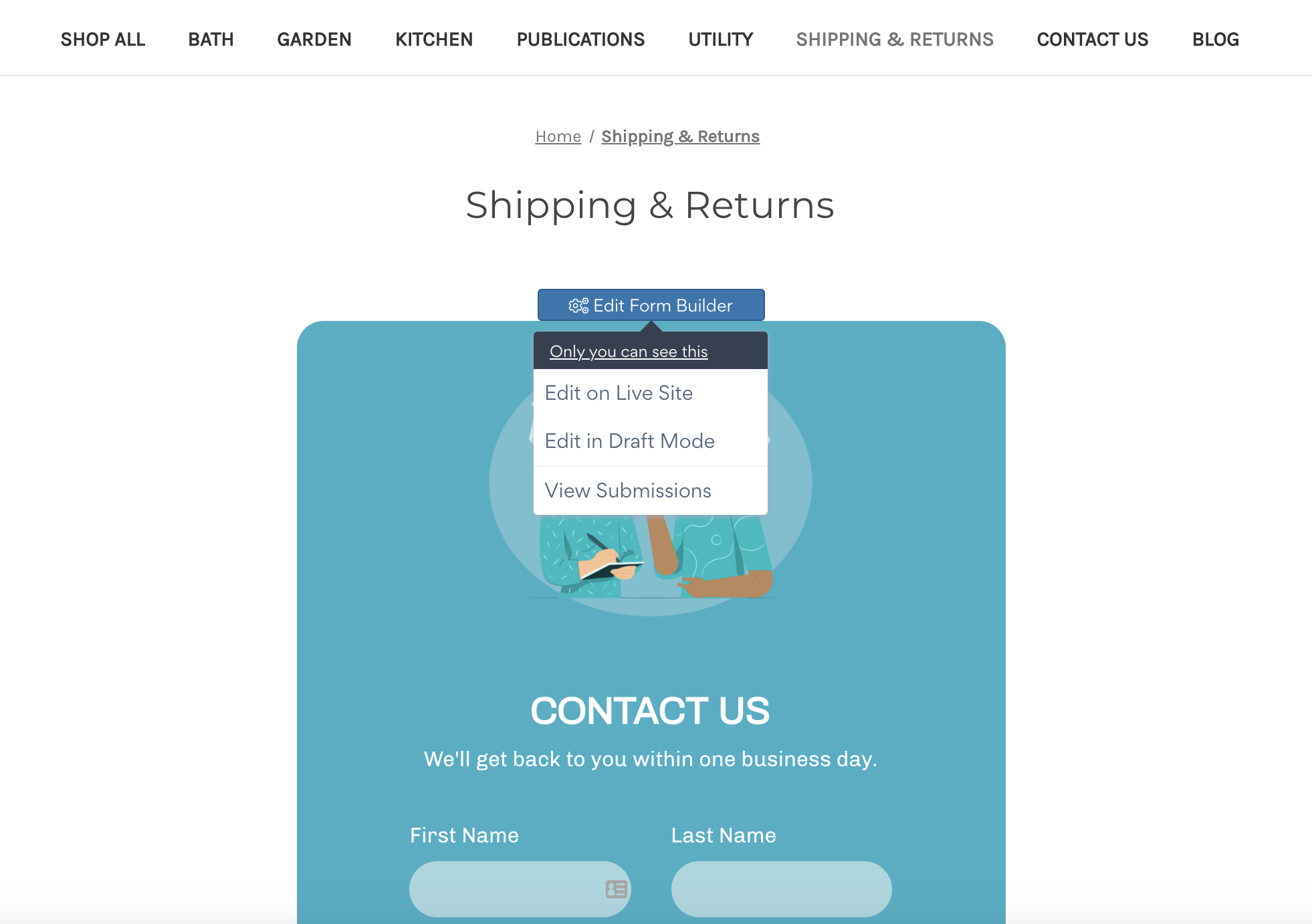
Note: You can edit your app on your live site. Only you will see this menu as the app admin, it won't be visible to visitors of your site.
Need Help?
If you need any help or have any questions about our Form Builder, our support team is happy to help.
👉 Contact our support team
When contacting us, you'll be prompted to authenticate your email by signing in, and a confirmation code will be emailed to you. This helps ensure our support team's reply will be delivered to you with no issues.
For more information about available features, visit our Pricing Page:
https://www.powr.io/pricing