
How can I add a button in POWR Sliders?
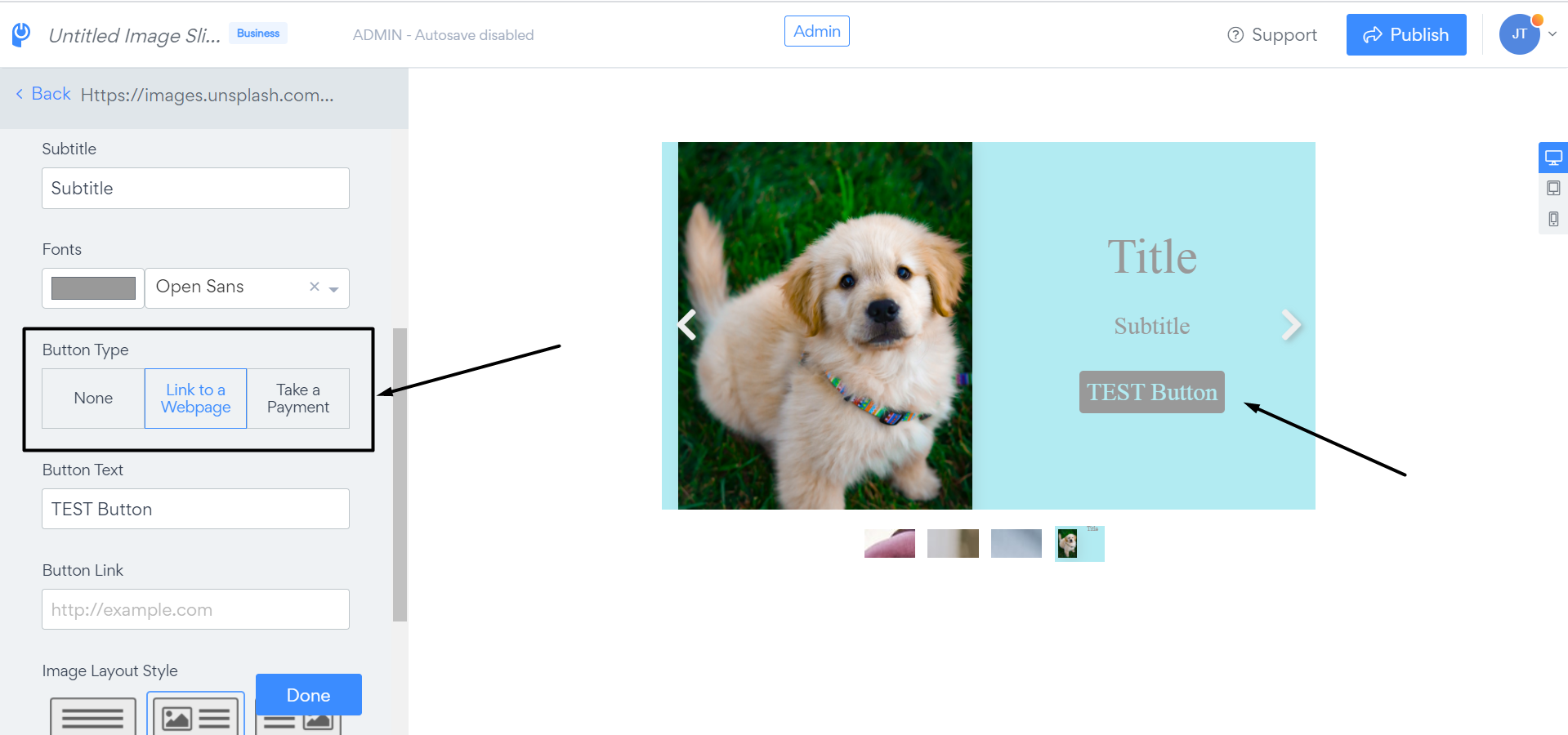
You can add a button to any Banner slide. It does one of two things:
Link to a Webpage: sends visitors to a URL you choose.
Take a Payment: lets visitors pay directly from the slide.
Steps
1. Open your app settings.
Open your Slider in the POWR editor and go to the Content tab.
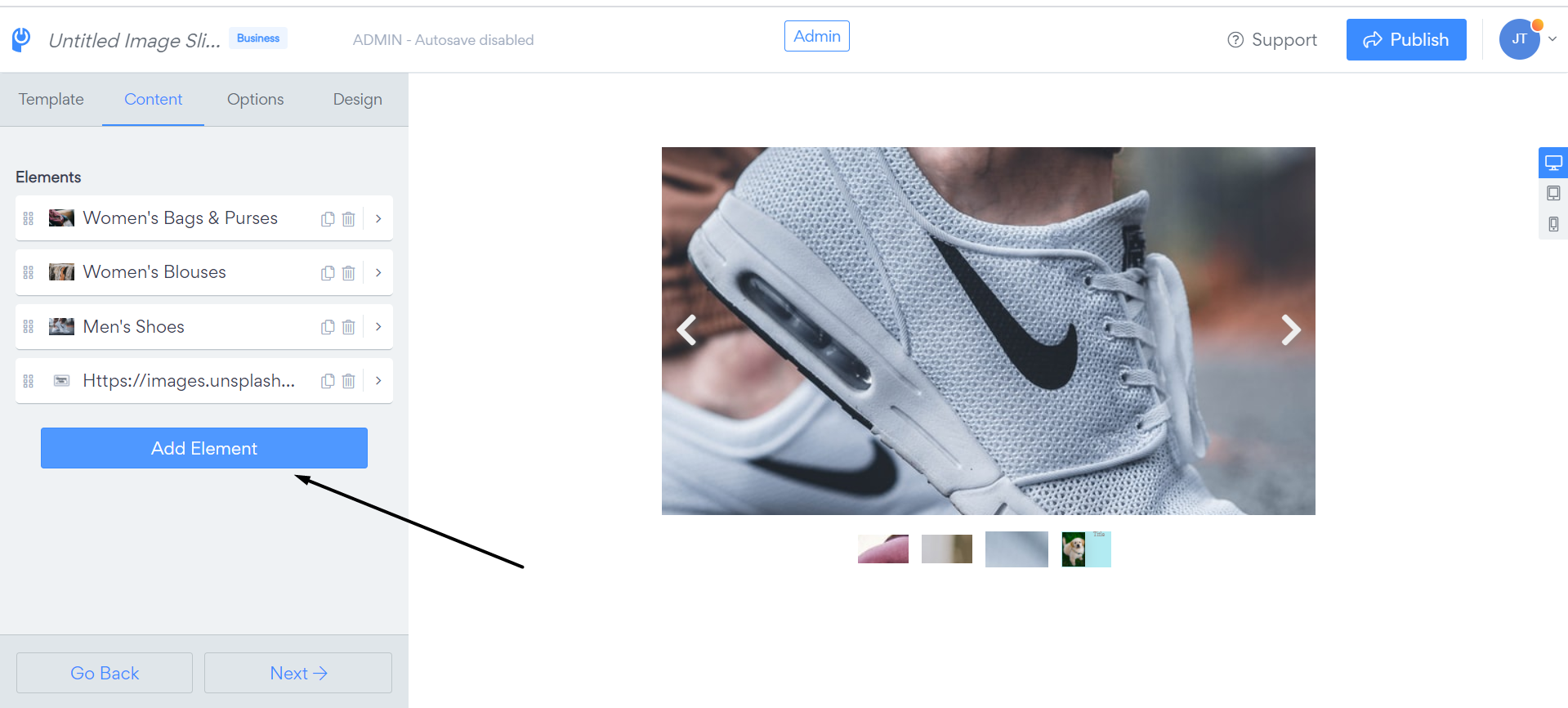
2. Click “Add Element.”
It’s at the bottom of the Elements list.
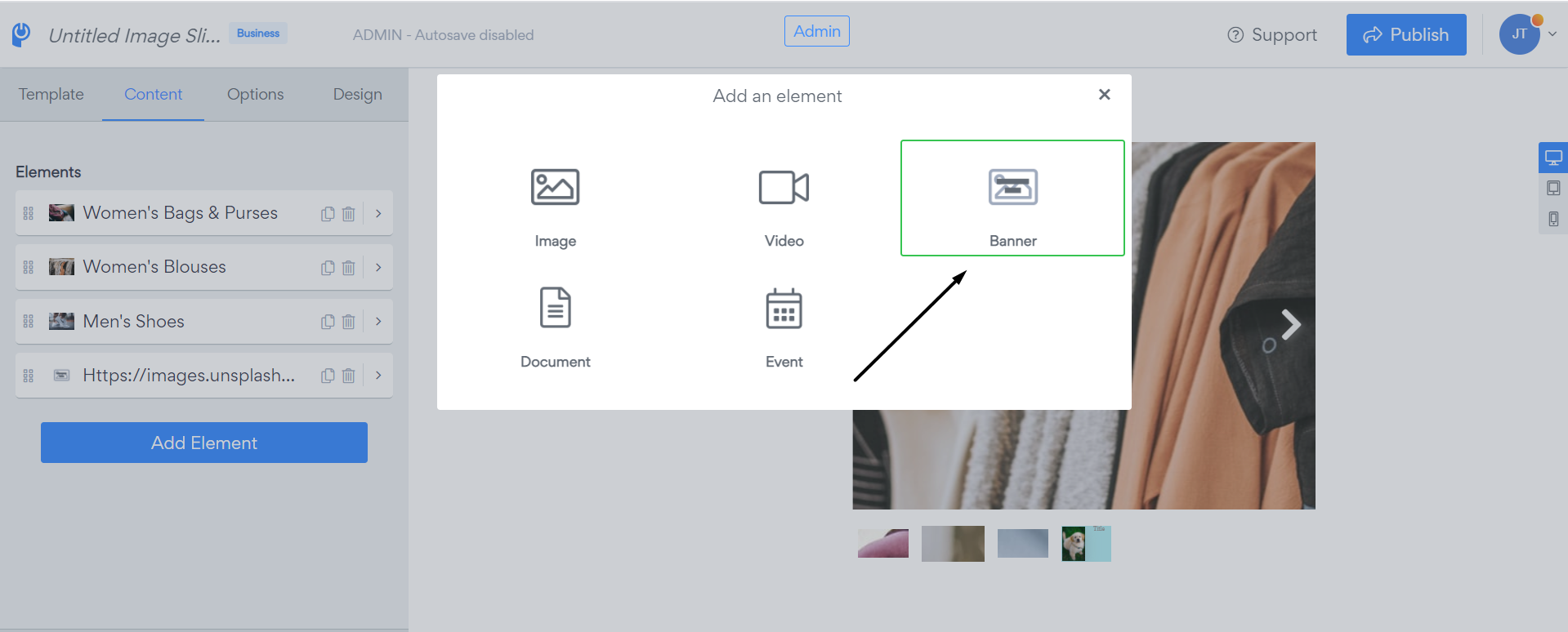
3. Choose “Banner.”
Buttons are available on Banner elements.
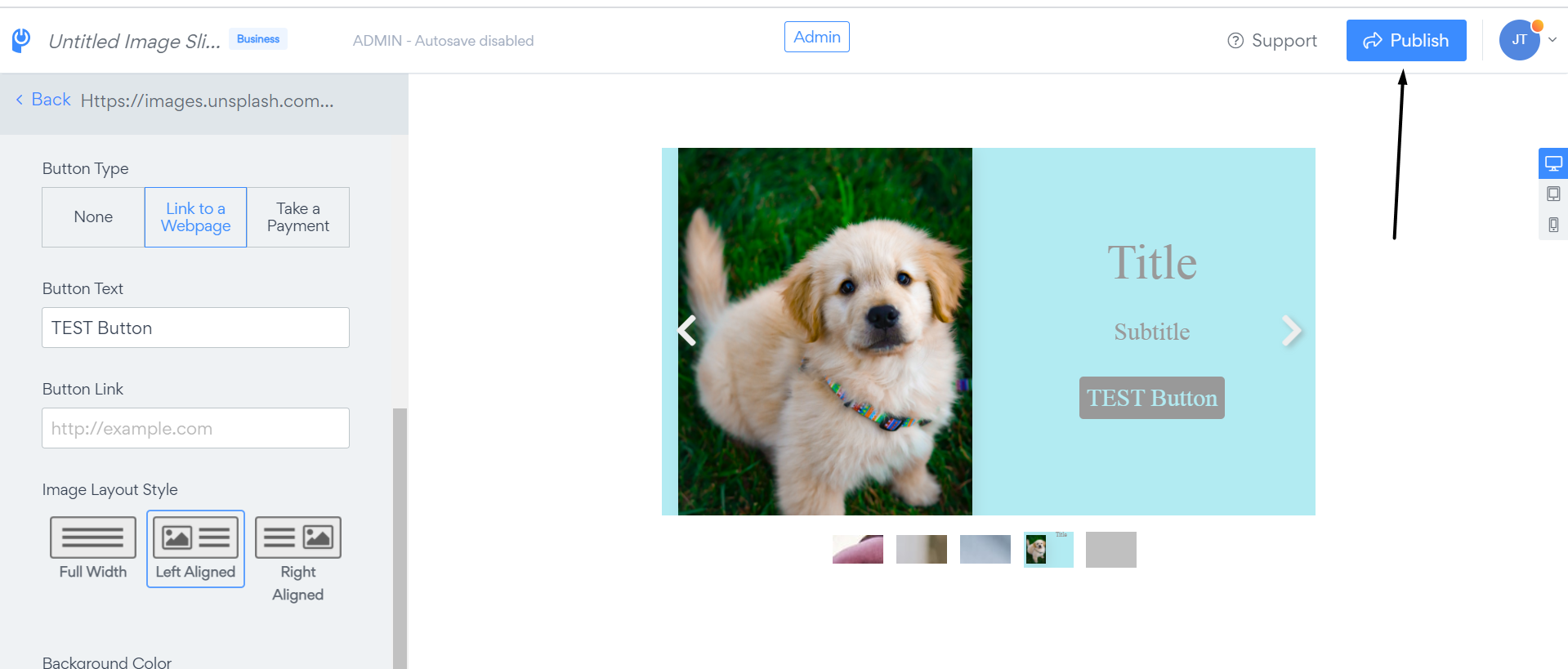
4. Set up your button.
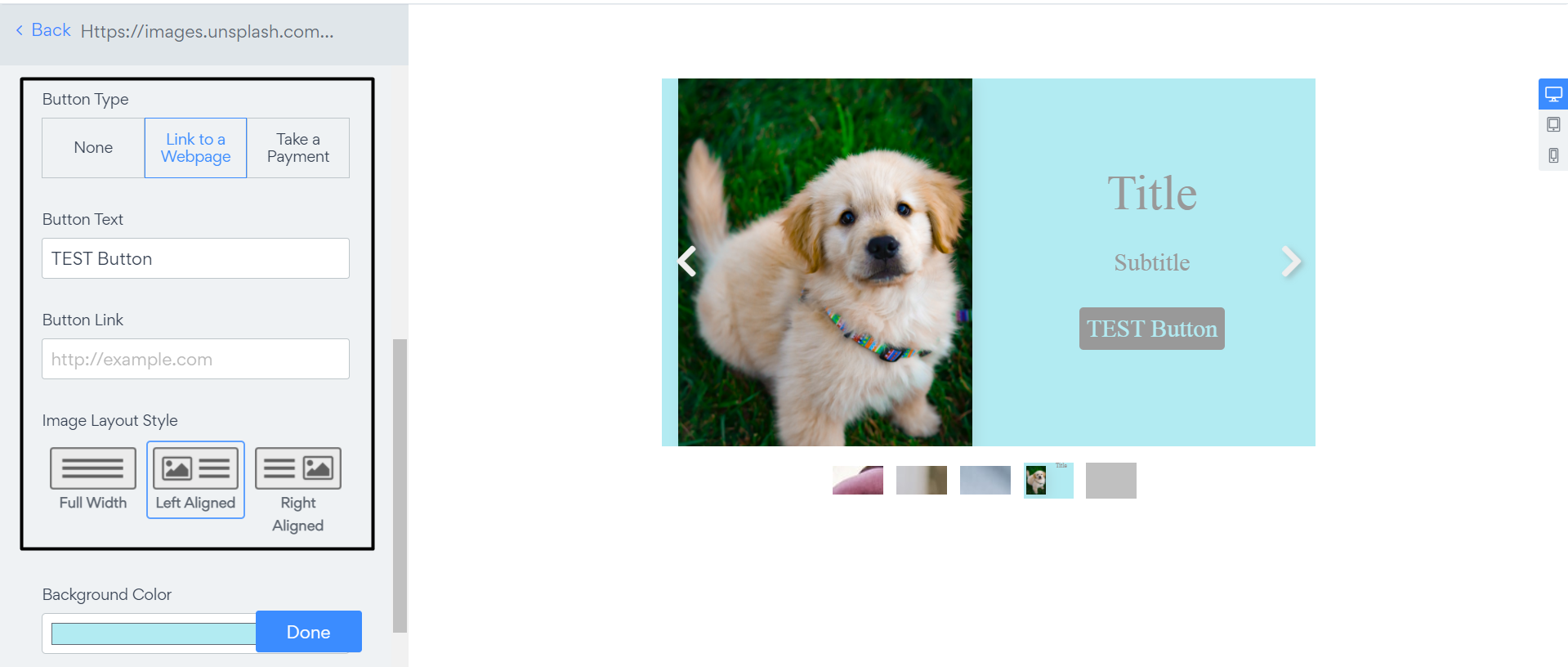
Under Button Type, pick Link to a Webpage or Take a Payment. Then fill in:
Button Text: the label visitors see on the button.
Button Link: the full URL the button opens, starting with
https://.
Choose an Image Layout Style (Full Width, Left Aligned, or Right Aligned) to position the image next to your text and button. Click Done when you’re finished.
5. Publish.
Click Publish in the top right corner. The button won’t appear on your site until you do.
Need Help?
If you need any help or have any questions about our Form Builder, our support team is happy to help.
👉 Contact our support team
When contacting us, you'll be prompted to authenticate your email by signing in, and a confirmation code will be emailed to you. This helps ensure our support team's reply will be delivered to you with no issues.
For more information about available features, visit our Pricing Page:
https://www.powr.io/pricing