
Can I install a POWR app on my Mailchimp campaign?
⚠️Our apps can be installed on the Mailchimp campaign; however, they will only show as a static image with a redirection link, and your recipient will have to click on this image to view the actual app.
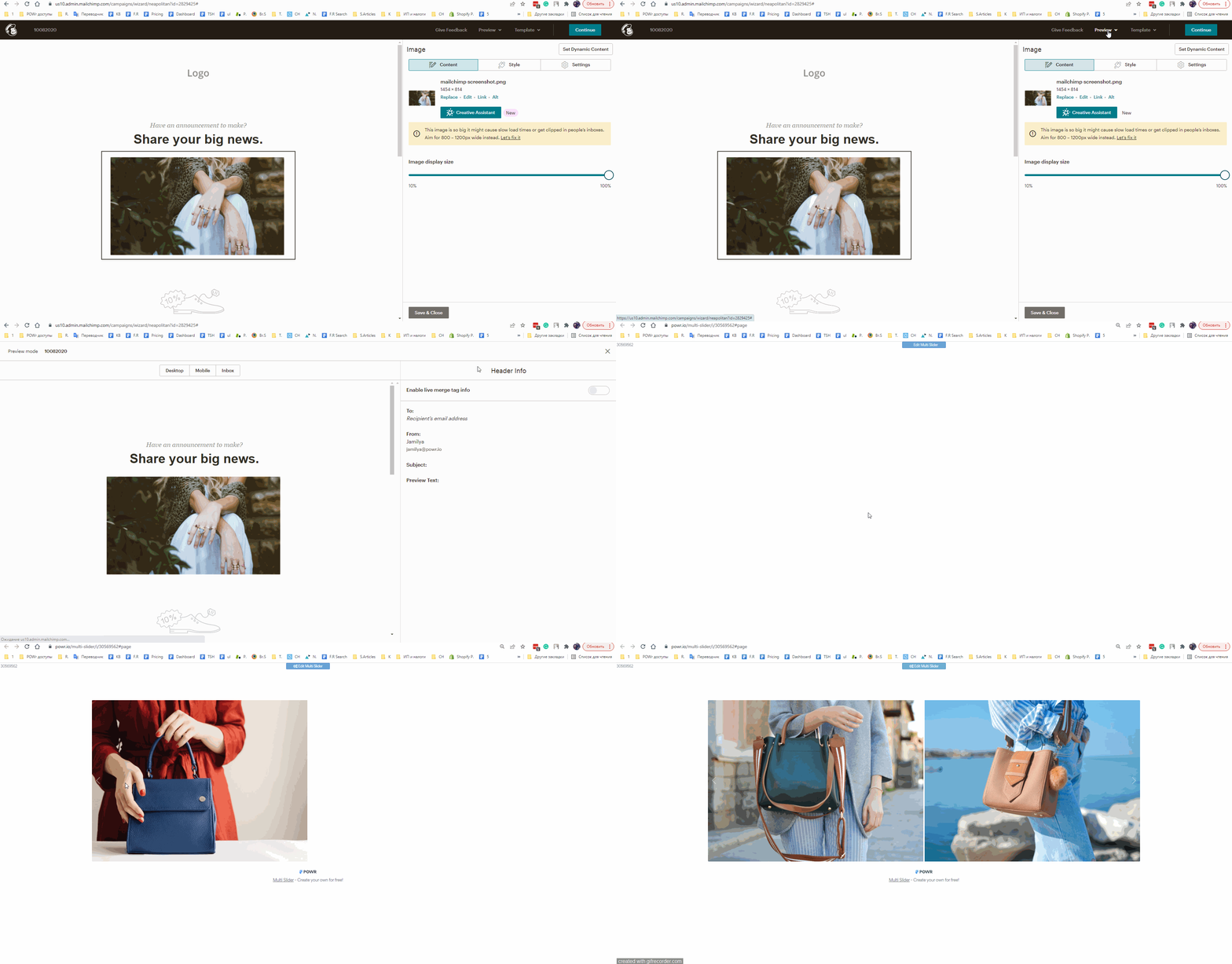
Kindly see the steps below for the sample Mailchimp campaign.
Step 1. Create POWR app and save the changes.
Step 2. Make a screenshot you would like to be displayed in your Mailchimp campaign. Save it as an image.
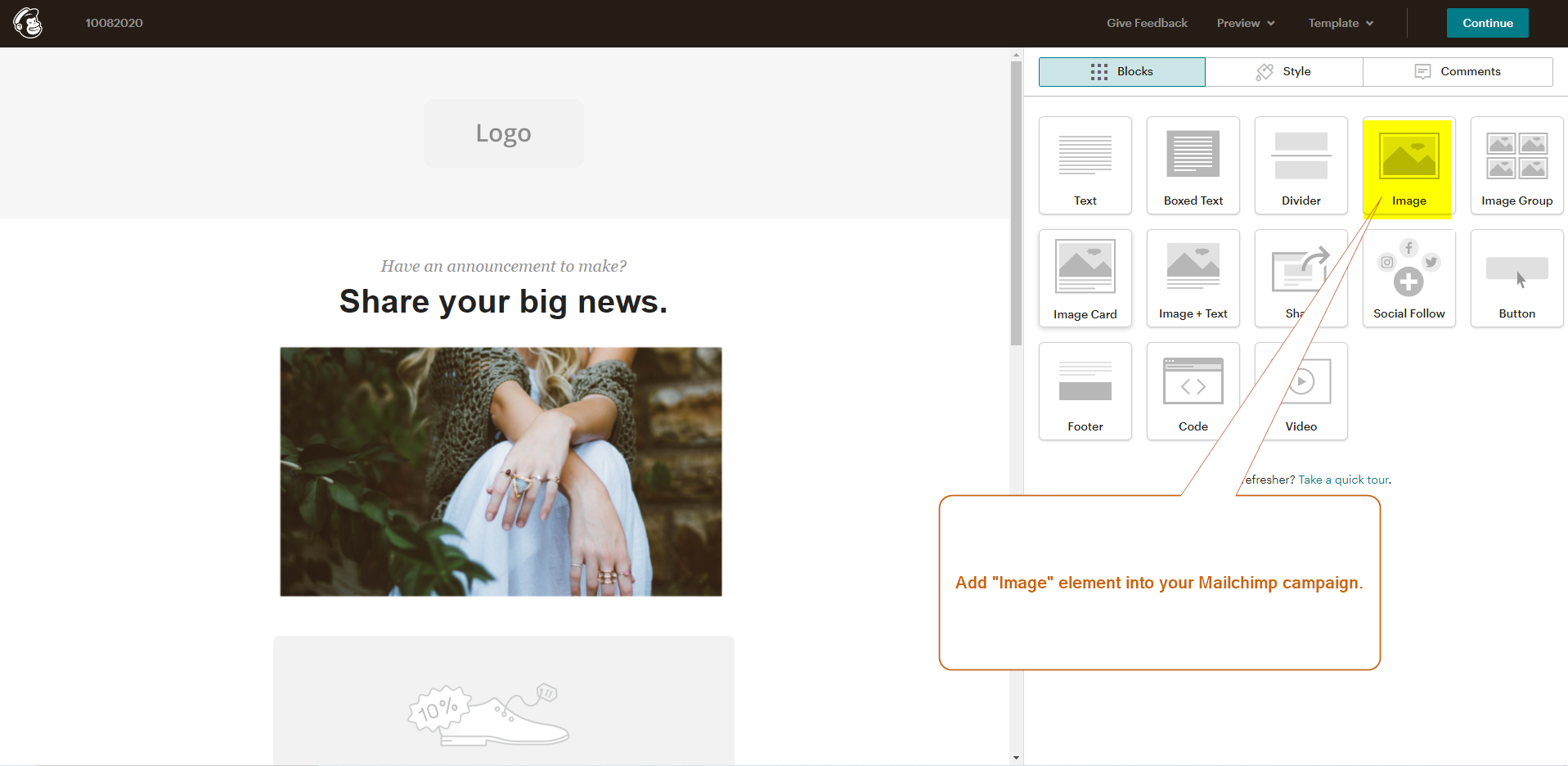
Step 3. Add the "Image element" in the Mailchimp campaign and insert your screenshot.
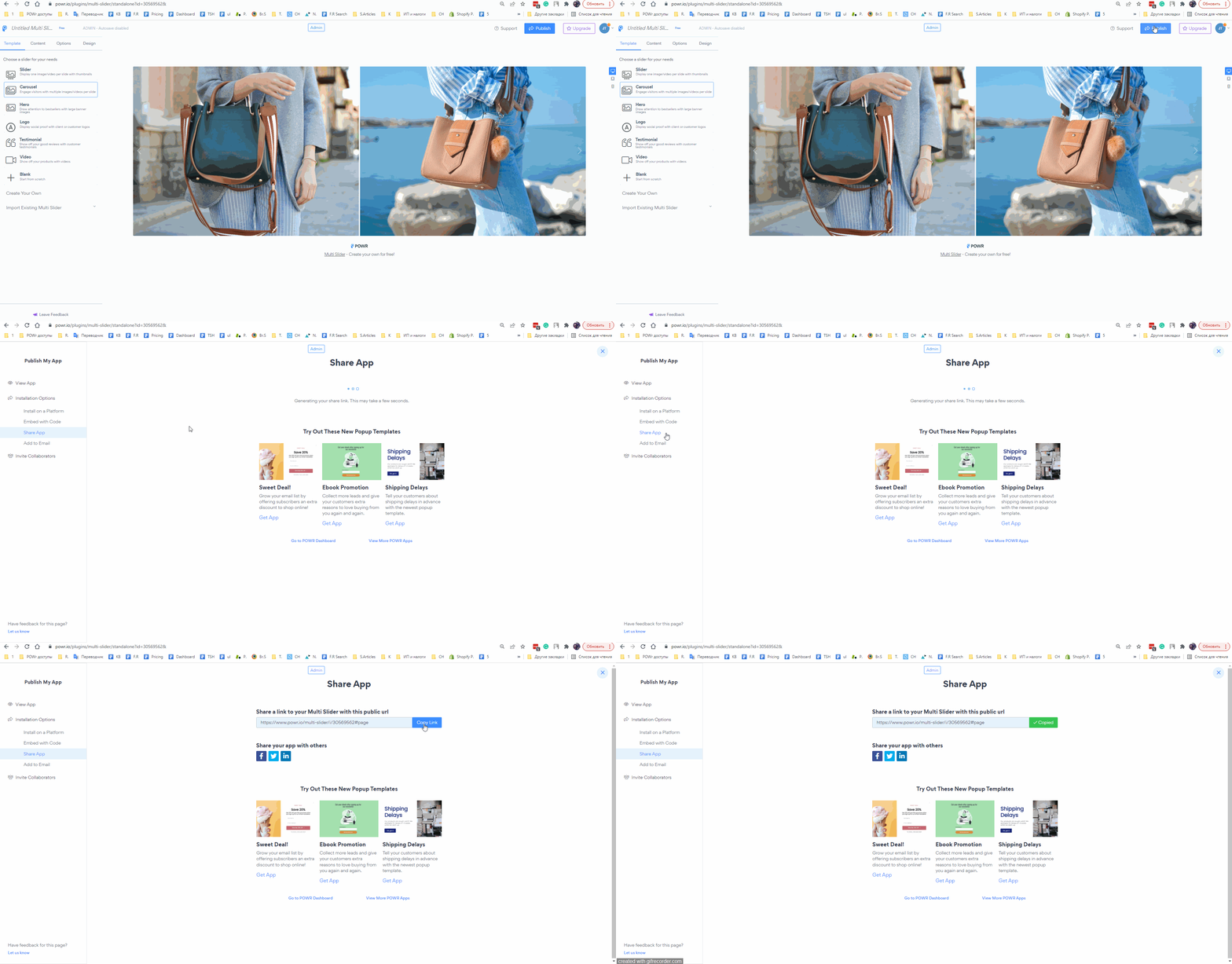
Step 4. Copy the "Share app" link from powr.io
Open app settings > Click on "Publish" button > Select "Share app" > Copy the code
*Open the GIF in the new tab to enlarge the image
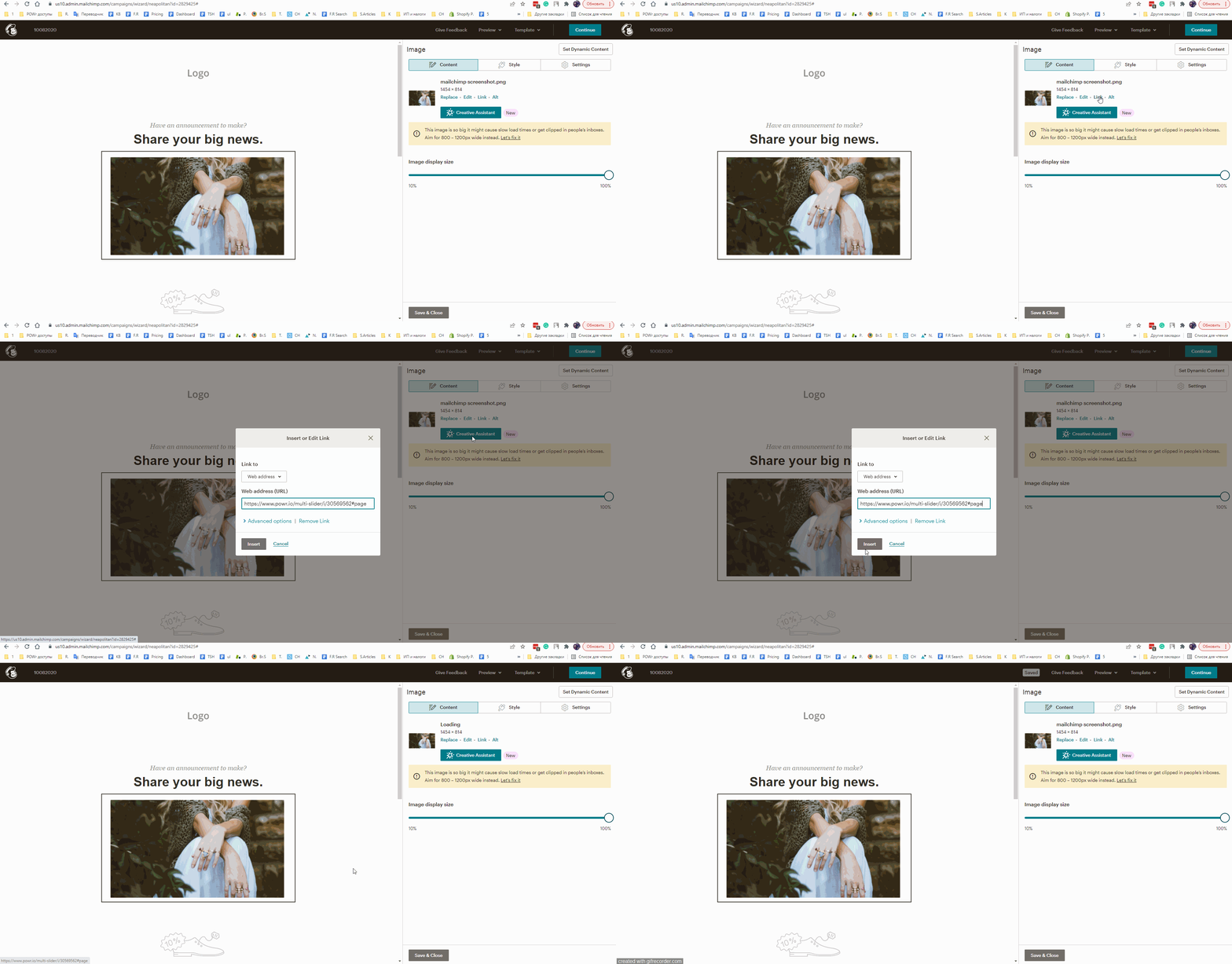
Step 5. Paste the "Share app" link into the screenshot (into the Mailchimp campaign).
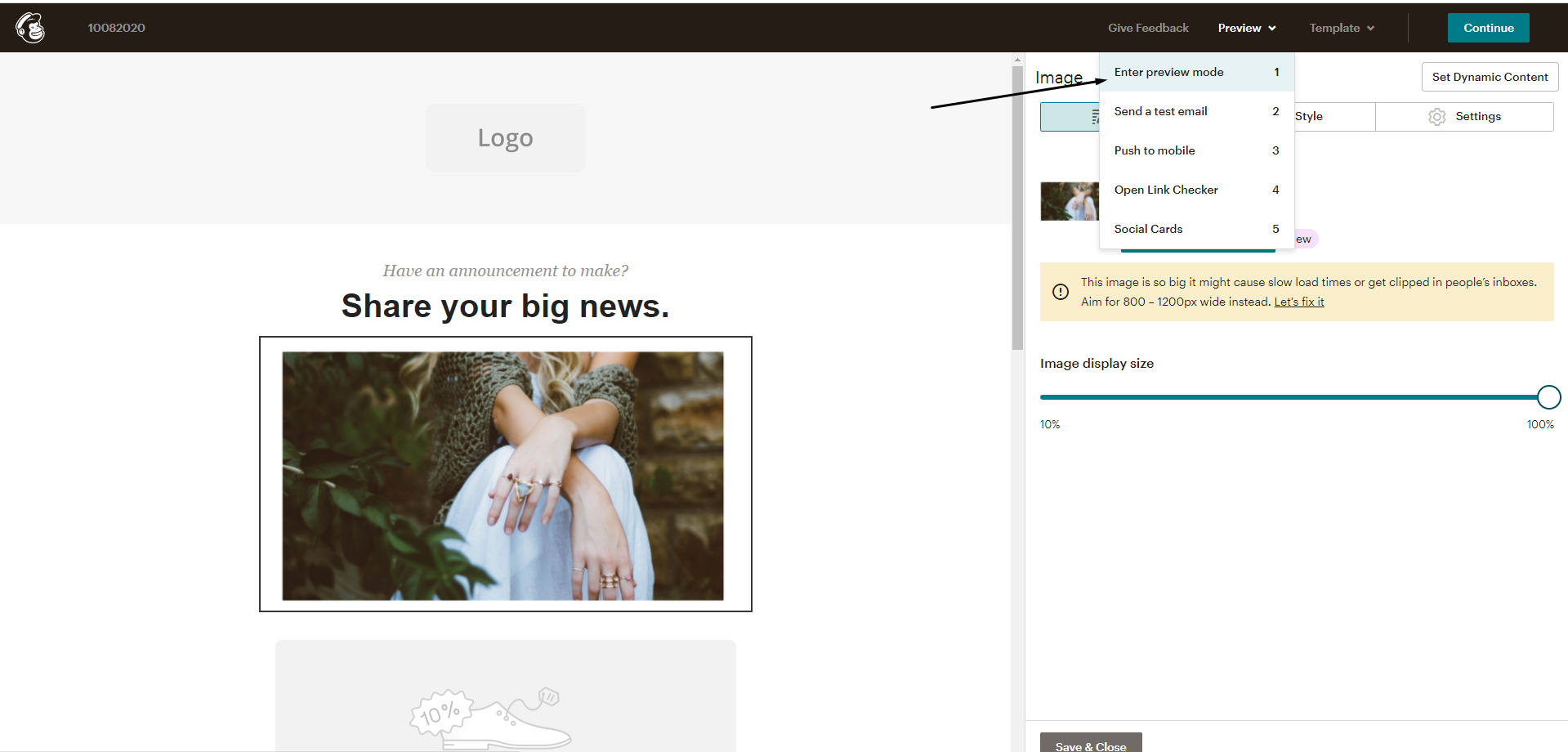
Step 6. Click on "Preview" > "Enter preview mode" to see the result
Learn how to connect Mailchimp to your form builder
Need Help?
If you need any help or have any questions about our Form Builder, our support team is happy to help.
👉 Contact our support team
When contacting us, you'll be prompted to authenticate your email by signing in, and a confirmation code will be emailed to you. This helps ensure our support team's reply will be delivered to you with no issues.
For more information about available features, visit our Pricing Page:
https://www.powr.io/pricing