
Countdown Timer: After Count options
There are multiple options for what to display on your site after your Countdown Timer has hit 0 (or the target date).
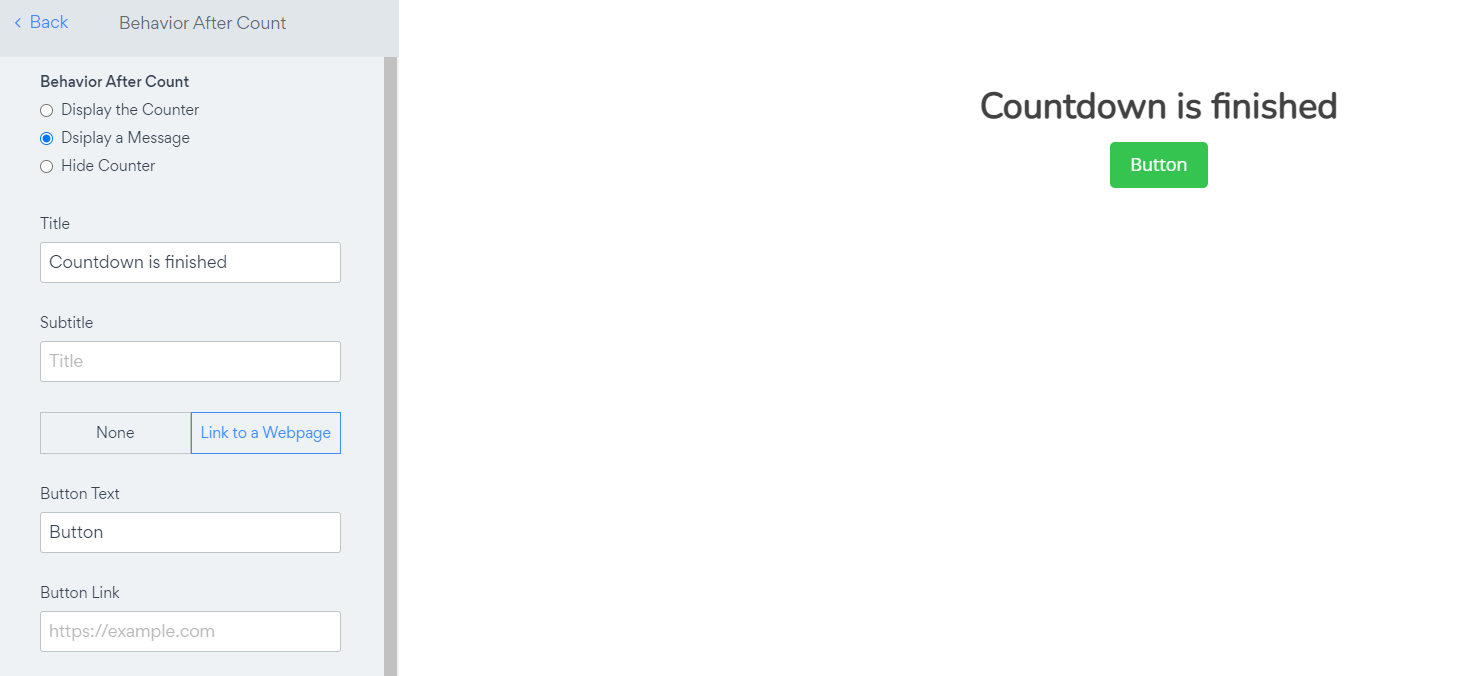
Display a Message
Display the Counter
Hide counter
1. Display a Message
When choosing the Display a Message option, you can display any custom text and/or button after your Timer has completed.
Example use cases:
You ran a special promotion and want your site visitors to know the deal has ended.
You had a countdown to when a special item becomes available, and you now want to link visitors to the page where they can buy the item, or take payment directly from that page.
2. Display the Counter
This option will keep the Timer on your site. The Timer will stop counting, and the user will see the 0s or the Target Number.

3. Hide Counter
The third option is to simply stop the Timer from appearing. Once the Timer stops counting your user will no longer see the timer on your site.
Need Help?
If you need any help or have any questions about our Form Builder, our support team is happy to help.
👉 Contact our support team
When contacting us, you'll be prompted to authenticate your email by signing in, and a confirmation code will be emailed to you. This helps ensure our support team's reply will be delivered to you with no issues.
For more information about available features, visit our Pricing Page:
https://www.powr.io/pricing